I Spent 4 Hours Editing a 10-Minute Street Walk Video. Never Again.
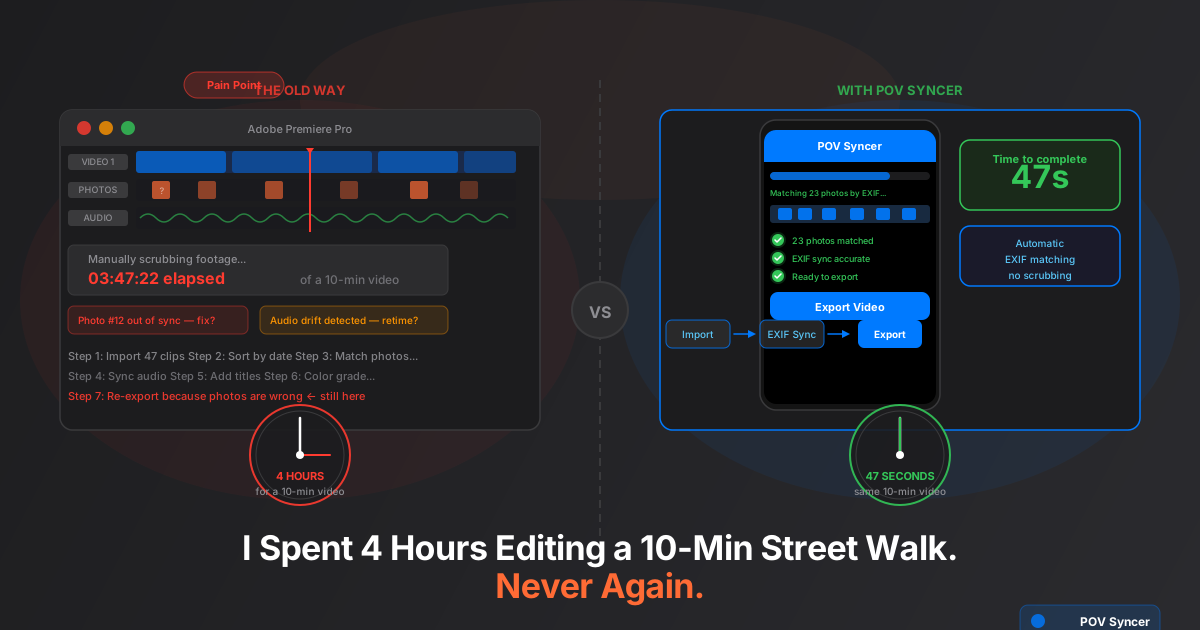
It started with 47 clips. A Saturday morning shoot in the lower east side — Ray-Ban Meta Gen 2 recording the whole walk, Fujifilm X100VI firing off frames whenever something interesting happened. About 90 minutes of footage, 23 keeper photos. I got home, made coffee, opened Premiere Pro, and started what I assumed would be a quick edit.
Four hours later I was still at my desk, the coffee was cold, and I had a half-finished timeline full of mismatched photo overlays, a scrubber I had moved back and forth across the same three-minute stretch at least fifteen times, and a growing certainty that there had to be a better way. The video was ten minutes long. I had spent four times as long trying to edit it as it would take to watch it.
If you shoot street photography with a POV camera — whether that's Ray-Ban Meta glasses, a GoPro Hero 13 mounted to your bag strap, a DJI Action 4 clipped to your chest, or an Insta360 GO 3S on your collar — you have been here. The footage is great. The photos are great. Making them work together on a timeline is a special kind of misery that nobody warned you about when you bought the gear.
The Actual Problem: Two Cameras, Zero Communication
Here is the core issue that nobody talks about clearly enough. Your POV camera and your street camera are completely independent systems. They have different clocks, different file formats, different ways of writing metadata, and no awareness of each other whatsoever. The POV camera records continuous video. The street camera takes photos. The only thing that links them is time — the fact that you were standing in the same place, holding both, at the same moment.
So when you sit down to edit, your job is to manually reconstruct that temporal relationship. For every single photo. Across a timeline that could be anywhere from ten minutes to two hours long. Doing that by eye, scrubbing through footage looking for the visual moment that matches the frame you shot, is genuinely one of the most tedious tasks in modern content creation.
It is especially painful with street photography because the decisive moments that make great stills are often the least visually obvious in video. A fraction of a second. A small motion. A slight shift in light. The video does not announce when you fired the shutter. You have to find it by looking, and then drag the photo to roughly the right place, and then watch the playback and adjust, and then do it again for the next photo.
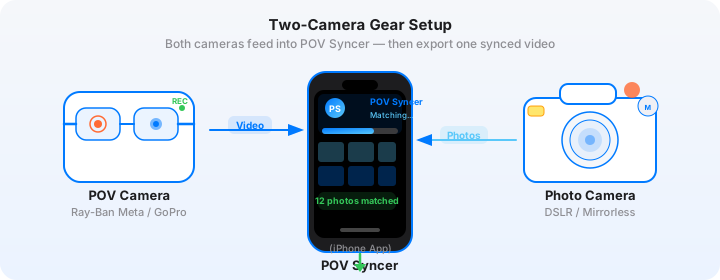
The 7-Step Manual Editing Nightmare
Let me walk you through what editing a POV street walk video actually looks like when you do it the manual way. I am going to be specific, because the specifics are where the pain lives.
Step 1: Import and Organize (20–40 minutes)
First you need to get everything into Premiere Pro or Final Cut Pro. The GoPro or DJI footage usually comes in as a series of numbered MP4 clips — GoPro splits files every 12 minutes by default, so a 90-minute walk is eight separate clips. You import them, you create a sequence, you stitch them together on the timeline and hope the joins are clean. The Ray-Ban Meta clips are a bit easier since they record as individual videos per session, but you still need to arrange them in order if you started and stopped.
Then you import the photos. Premiere handles JPEG and RAW differently. If you shot RAW + JPEG on the Fujifilm X100VI, you have 46 files for 23 photos. You need to import only the JPEGs, or only the RAWs, and make sure you are not accidentally mixing them. Then you create a photo bin. This alone takes fifteen minutes minimum if you have more than a few shots.
Step 2: Find Each Shutter Moment (the core grind)
This is where the real time goes. For each of your 23 photos, you need to find the corresponding moment in the POV footage. You scrub through the timeline, looking for visual clues. If you are lucky, you can see yourself raise the camera. If you are unlucky — which is most of the time with street photography, where the camera comes up fast and the subject is fleeting — you are looking for a subtle shift in your eye position or a slight pause in your walking pace.
For a 90-minute session with 23 photos, this step alone takes 90 minutes to two hours if you are thorough about it. If you rush it, the photos end up visually close but not accurate, and the whole video feels slightly off in a way that viewers sense without being able to articulate. The decisive moment appears half a second before or after it actually happened. The shutter click sound (if you add one) is out of sync with the visual transition. Everything is slightly wrong.
Step 3: Place Photo Overlays on the Timeline
Once you have found the right frame, you drag the photo from the bin to the video track above the footage at that timecode. Then you set the duration — how long the photo stays on screen. Two seconds? Three? Does it fade in and out? Does it animate? Each of these micro-decisions is a separate step in the software. For 23 photos that is at minimum 46 manual drag-and-click operations, and realistically closer to a hundred once you account for adjustments.
Step 4: Match Audio (another 30–60 minutes)
If you want shutter click sounds synchronized to each photo — and you do, because that audio cue is a big part of what makes POV street photography videos compelling — you need to add them too. Each photo gets its own audio clip, positioned at the same timecode as the photo overlay. That is another 23 placements, with volume adjustments, and you need to preview each one to check the sync.
Then there is the ambient audio from the POV camera itself. The Ray-Ban Meta microphones actually record pretty good audio for a wearable — you get natural street sound, footsteps, ambient conversation, the environmental texture of the city. But the levels fluctuate, and if you want the audio to feel consistent across the edit, you are looking at a pass of audio normalization and possibly some noise reduction work. Another 20 minutes, minimum.
Step 5: Add Titles and Text
Street photography process videos need context. A location title at the opening, maybe camera settings or a short reflection after a particularly strong shot. In Premiere, adding a title means opening the Essential Graphics panel, creating a text layer, styling it (font, size, color, position), setting its duration, and adding a transition. Repeat for every title you want. For a well-produced street video you might have four or five title cards. That is another 30 minutes.
Step 6: Color Grade
The Ray-Ban Meta footage has its own color science. The Fujifilm X100VI JPEG with Classic Chrome or Eterna has a completely different color science. When you cut between video and a photo overlay, the color mismatch is immediately visible if you have not done any grading. So now you are in Lumetri Color, trying to match the look of 23 individual stills to a continuous video grade. Each still needs its own correction if the shooting conditions changed across the session. This step alone has eaten entire evenings.
Step 7: Export, Review, and Re-Export
You export the video. You watch it back on your phone to check how it looks at viewing scale. You notice three photos where the timing is slightly off. You go back into Premiere, nudge the overlays, re-export. The GoPro or DJI version at 4K takes fifteen minutes to render. You watch it again. One of the title cards has a typo. Back into Premiere. Another export. By this point it is 11pm and you started at 7pm.
The Clock Does Not Lie
I am not exaggerating the four-hour number. I tracked it the last time I did a full manual edit with a GoPro Hero 13 and Ricoh GR IIIx session from a walk in Williamsburg. The session was 75 minutes long. I shot 31 frames, kept 18. The edit took three hours and forty minutes, not counting the time I spent staring blankly at the screen wondering why I was doing this to myself.
The breakdown was roughly: 35 minutes importing and organizing, 95 minutes finding shutter moments and placing photos, 30 minutes on audio, 40 minutes on titles and color, and 20 minutes on export iterations. That is not a hobby workflow. That is a second job.
Stop timing how long your edits take
Download the free POV Photography Cheat Sheet — camera settings, EXIF tips, and export presets for Ray-Ban Meta, GoPro, DJI, and Insta360 on one page. Join 1,000+ photographers who already got it.
Free PDF, no spam. Unsubscribe anytime.
Why EXIF Timestamps Change Everything
Every photo you shoot contains hidden data that your editing software almost certainly ignores. Embedded in the file — in the EXIF metadata block — is a timestamp recording the precise moment the shutter fired, accurate to the second. Your Fujifilm X100VI writes it. Your Ricoh GR IIIx writes it. Your Leica Q3, Sony A7C II, Nikon Zf, Canon R6 III — every modern camera writes it.
That timestamp is the solution to the entire manual-editing problem. If you know when the shutter fired, and you know when the video started and what its frame rate is, then you can calculate exactly which video frame corresponds to each photo. The math is simple: (photo_timestamp - video_start_time) × frame_rate = photo_frame_number. No scrubbing. No guessing. No visual matching by eye. The computer does it in milliseconds.
The reason traditional editing software does not do this automatically is that Premiere Pro and Final Cut Pro are general-purpose video editors. They were not designed specifically for the use case of matching POV camera footage to photos from a different camera. They treat photos as static assets and give you no mechanism for positioning them by timestamp rather than by manual placement on a timeline.
The Timezone Problem (and How to Solve It)
There is one catch with EXIF timestamp matching, and it is worth understanding clearly. Camera clocks and video file timestamps can disagree for two reasons: the camera's internal clock may be slightly wrong (they drift over time), and timezone handling varies between manufacturers.
A Fujifilm X100VI records timestamps in local time with a timezone offset in the OffsetTimeOriginal EXIF field. A GoPro Hero 13 records video timestamps in UTC unless you have GPS lock. A DJI Action 5 Pro uses a different convention again. If you naively compare timestamps without accounting for these differences, your photos will appear in the video at the wrong time — sometimes by hours.
The fix for the camera clock drift is simple: before every session, open your phone's clock app, note the time to the second, and set your camera's clock to match. Do this every single time — camera clocks drift faster than you expect, and even a 30-second error will produce a visible sync offset in the finished video.
The fix for the timezone mismatch is what requires smart software. You need something that reads all the EXIF timezone fields — DateTimeOriginal, OffsetTimeOriginal, GPSDateStamp, GPSTimeStamp — and applies a priority-order resolution strategy to figure out the correct UTC equivalent for each photo's timestamp. This is not hard to do in software, but it requires specifically designing for it.
The POV Syncer Workflow: What Actually Happens
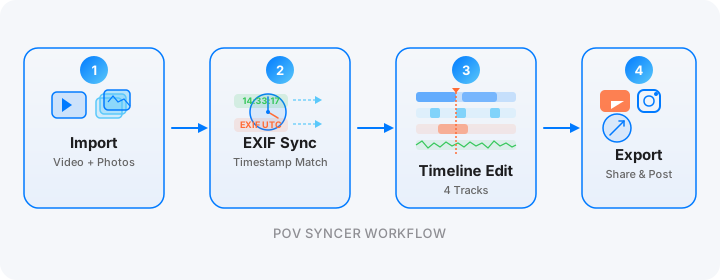
POV Syncer was built specifically to solve the manual editing grind that I just described. It is an iOS app — which means it lives on your phone, which means you can start the edit while you are still on the subway home from a shoot. Here is what the actual workflow looks like from start to finish.
Import: Footage and Photos in One Place
Open POV Syncer and create a new project. Import your POV video — tap to select it from your camera roll, or use AirDrop directly from a GoPro or DJI's companion app. Then import your photos from the same session. The app accepts JPEGs from any camera, including RAW-converted JPEGs from Fujifilm, Sony, Nikon, and Canon workflows. This entire step takes about thirty seconds.
Automatic EXIF Matching: The Core Feature
Once both the video and photos are imported, you tap a single button. POV Syncer reads the start timestamp of the video clip, reads the EXIF timestamps from every photo, and runs its four-strategy matching algorithm: GPS UTC timestamp first, then OffsetTimeOriginal with timezone correction, then device timezone fallback, then filename-pattern parsing as a last resort. For a typical street shoot with properly set camera clocks, the matching is accurate to within one or two seconds — imperceptible in the finished video.
For 23 photos on a 90-minute session, this process takes under 10 seconds. You will see the photos appearing as markers on the video timeline, placed at exactly the moment they were captured. No scrubbing. No visual hunting. No guessing.
The app also handles the common edge case where your camera clock was slightly wrong. If you notice that all your photos are consistently a few seconds off in one direction, you can apply a global offset correction — a single slider adjustment that shifts all photos by the same amount — rather than individually repositioning every overlay.
Download POV Syncer Free — Create Your First Video in 60 SecondsTimeline: Refine Without Rebuilding
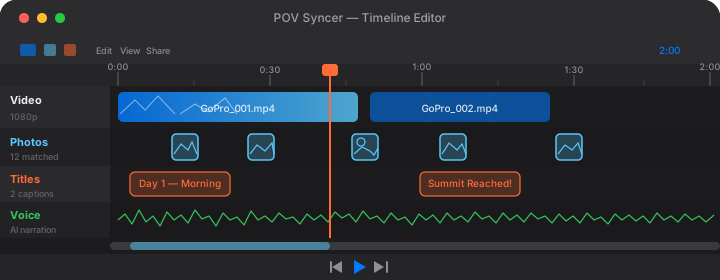
After the automatic match, you land in the 4-track timeline editor. Track 1 is your POV video. Track 2 shows your photos as markers at their matched positions. Track 3 is for titles. Track 4 is for AI narration or your recorded voice.
The key difference from Premiere is that you are not building the timeline from scratch — it is already assembled. You are refining. You can trim the video, adjust individual photo positions if any are slightly off, set photo display duration, choose whether photos fade in or pop in, and add title cards with any of the 15 included fonts. What was six separate steps in Premiere is now one unified interface.
For the average street walk video, the refinement pass takes 10 to 15 minutes — not because the tool is slow, but because you are making creative decisions about the edit rather than doing mechanical placement work. That is the right use of your time.
AI Narration: Your Artist Statement, in Seconds
Street photography process videos are more compelling with narration. Not music over footage — actual spoken context about what you were thinking, what you saw, why you chose a particular frame. In Premiere, that means either recording your own voice, doing noise reduction on the recording, and timing the narration to the video — or forgoing it entirely because it is too much work.
In POV Syncer, you type your narration script — 50 to 100 words is usually right for a 10-minute video — choose one of the premium AI voices, and tap generate. The narration renders in seconds and drops onto the Voice track. You can position it wherever you want on the timeline. Preview, adjust, done.
If you prefer to use your own voice (and there is a strong case for doing so — your voice is more authentic than any AI), POV Syncer supports direct microphone recording from your phone. Either way, this step takes under five minutes rather than the hour it takes in a desktop editing workflow.
Titles: 15 Fonts, No Design Skills Required
The title system in POV Syncer includes 15 fonts that were specifically chosen for photography content — from clean sans-serif options that suit contemporary street work to serif and editorial styles for a more formal feel. You tap to add a title card, type your text, pick the font, adjust the size, and set the duration. The app handles positioning and transitions automatically.
For street photography videos, I typically use three title cards: an opening location and date stamp, one contextual note at the strongest photo in the video, and a closing credit. That is about four minutes of work in POV Syncer versus twenty-five in Premiere.
Export: Correct Format, No Settings Archaeology
Exporting in Premiere or Final Cut requires you to know which preset is right for your destination — H.264 vs HEVC, 1080p vs 4K, the correct bitrate for Instagram's compression, the right aspect ratio for Reels versus YouTube versus TikTok. Getting any of this wrong means your video looks worse than it should after the platform's own compression pass.
POV Syncer's export screen presents the right presets for each platform by name. Tap "Instagram Reels" and you get 1080x1920 at the correct bitrate with H.264 encoding. Tap "YouTube" and you get 1920x1080 at 4K if your source footage supports it. One tap per destination. No settings archaeology.
Time Comparison: The Numbers That Matter
Let me give you a direct before-and-after comparison based on the same type of session: 90-minute street walk, 23 keeper photos, Ray-Ban Meta Gen 2 footage, Fujifilm X100VI stills.
Manual workflow in Premiere Pro
- Import and organize: 35 minutes
- Find and place photo overlays: 95 minutes
- Audio sync and cleanup: 30 minutes
- Titles and color: 40 minutes
- Export iterations: 20 minutes
- Total: 3 hours 40 minutes to 4+ hours
POV Syncer workflow
- Import footage and photos: 30 seconds
- Automatic EXIF match: under 10 seconds
- Timeline refinement and titles: 10–15 minutes
- AI narration or voice recording: 3–5 minutes
- Export: 1 minute to configure, 5–10 minutes to render
- Total: 20–30 minutes of active editing time
That is not a marginal improvement. It is a fundamental change in how much time it takes to share your work with the world. If you shoot two sessions a month, you are reclaiming somewhere between six and eight hours a month that you were previously spending on mechanical editing grunt work. That is time you can spend shooting instead.
Works with Every Camera Combination
One thing worth emphasizing: the EXIF matching approach is not specific to any particular camera pair. POV Syncer handles all of the major POV cameras — Ray-Ban Meta Gen 1 and Gen 2, GoPro Hero 11, 12 and 13, DJI Action 4 and Action 5 Pro, Insta360 X4, Insta360 GO 3S, and Insta360 Ace Pro 2 — and all of the major street cameras.
Fujifilm's EXIF implementation works. Sony's works. Leica Q3 and Q2 work. Ricoh GR IIIx and GR III work. Canon R6 III and R7 work. Nikon Zf and Z50 II work. iPhone 16 Pro and Samsung Galaxy S25 Ultra work. The app reads the EXIF block from every major camera brand and applies the correct timezone resolution strategy for each one automatically.
The only thing you need to do on your end is make sure your camera's clock is set correctly before each session. That is a 10-second habit that makes everything else work perfectly.
Want settings cheat sheets for 20+ camera combos?
Join 1,000+ photographers getting weekly tips on POV video workflows, EXIF sync tricks, and camera-specific settings for Ray-Ban Meta, GoPro, DJI, and every major street camera.
Free. Unsubscribe anytime.
What the Finished Video Actually Looks Like
I want to be clear about what the output of this workflow is, because "automated" sometimes implies "generic." It is not. The finished video looks exactly like something you would produce in Premiere — because you still made all the creative decisions. You chose the footage. You chose the keeper photos. You chose where to trim, what titles to add, what to say in the narration, how long each photo stays on screen.
What POV Syncer automates is not the creative work. It is the mechanical work — the tedious timeline placement, the audio sync, the export settings. The creative layer is still entirely yours. You are just spending your limited editing time on decisions rather than on drag-and-drop operations.
The photo overlays appear at exactly the right moment because the EXIF timestamps are precise. The shutter click audio is synchronized because the app places it at the same timecode as the photo. The title cards look clean because the fonts were chosen specifically for this type of content. The export is properly formatted for its destination platform because the presets were built by people who understand how each platform handles video compression.
The result is a street photography process video that shows your audience exactly how you work — your eye-level perspective, the city as you move through it, your frames appearing at the exact moments you captured them. It is the most honest representation of your photographic process that you can create, and it takes about 25 minutes to produce from raw footage to published video instead of four hours.
One More Thing About the Free Tier
POV Syncer's free tier is fully featured — unlimited imports, the full timeline editor, all 15 fonts and 10 backgrounds, clean unwatermarked export. The Pro upgrade only adds AI voice narration. That means you can run the actual product end-to-end before deciding whether the AI voice is worth paying for. If you have been putting off sharing your POV street photography videos because the editing grind is too painful, the free tier costs you nothing but twenty minutes to try.
The Pro tier — at $9.99 per month or $99.99 per year — removes the one-video limit, adds all 15 fonts, all 10 background styles, AI narration, and multi-camera support. It pays for itself the first time you would have otherwise spent four hours in Premiere. For photographers who shoot regularly, it pays for itself every month.
The Only Question That Matters
How much time are you spending right now on the mechanical parts of editing POV street photography videos? If the answer is more than an hour for a 10-minute video, you are spending time on something that a properly designed piece of software can eliminate. The photos you took are good. The footage you recorded is good. You should be spending your editing time making creative decisions — not scrubbing through a timeline for the fifteenth time, hunting for the frame where you raised your camera.
That four-hour edit I described at the start of this post was the last one I did manually. I found POV Syncer, tried the free tier on the exact same type of session, and had a finished video in under 30 minutes. The output was better — more accurate photo placement, cleaner audio, proper export formatting — because I was not fatigued from hours of mechanical work when I got to the creative decisions. I just stopped wasting time, and the work got better as a result.
Your next edit should take 25 minutes, not 4 hours
Download POV Syncer free and create your first automatic EXIF-synced street photography video. Works with Ray-Ban Meta, GoPro, DJI, Insta360, and every major street camera.