Ray-Ban Meta Gen 2 + Fujifilm X100VI: The Ultimate POV Street Photography Setup
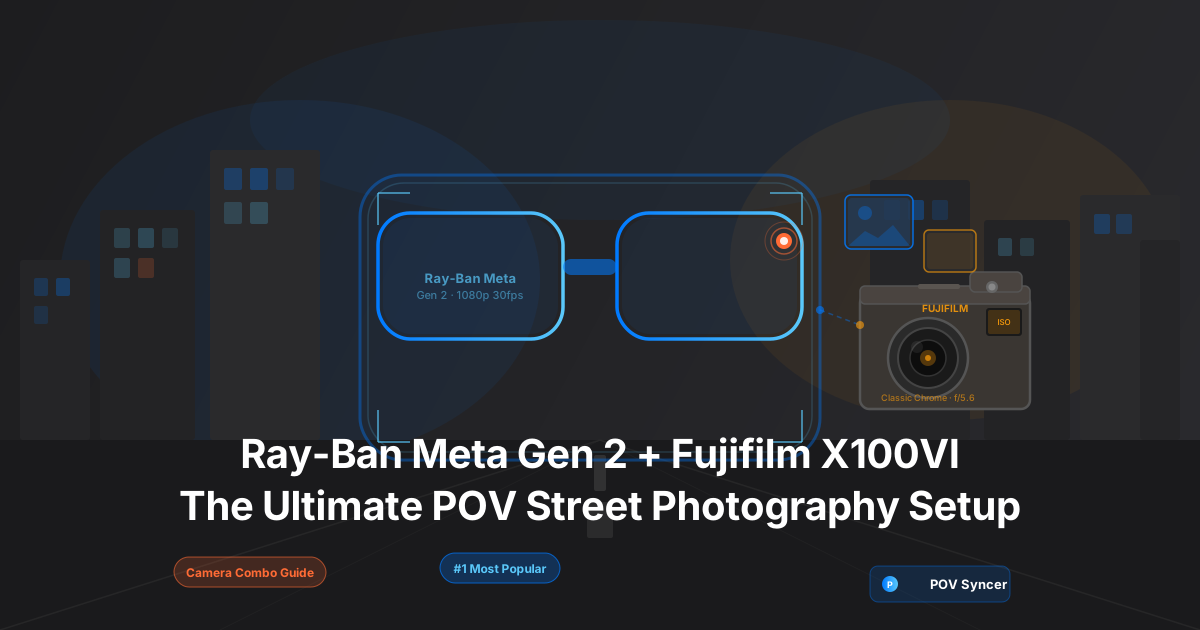
Picture this. It is 7 a.m. on a Tuesday. You have just returned from a ninety-minute walk through your city with your Ray-Ban Meta Gen 2 glasses recording the whole time and your Fujifilm X100VI firing off seventy frames. The light was extraordinary. You caught three images you know are keepers. Now comes the part nobody talks about: the editing.
You open Premiere Pro and start scrubbing through sixty minutes of first-person footage to find the three moments that match your best shots. Then you manually drag each JPEG onto the timeline, nudge them forward and back by hand, add text, export, repeat. Three hours later you have a ten-minute video you could have posted this morning while the light was still in your head. That is the editing grind that kills the momentum of street photography faster than anything else.
There is a better way. This guide covers every detail of the Ray-Ban Meta Gen 2 and Fujifilm X100VI setup — the camera settings, the clock sync procedure, and the POV Syncer workflow that matches your photos to your video automatically using EXIF timestamps. What took hours now takes under sixty seconds. Here is exactly how to do it.
Why This Is the Number One Camera Combo for Street Photography POV
Street photographers have been pairing these two cameras longer than any other combination in the POV genre, and it is not hard to see why. The X100VI is arguably the finest compact street camera ever made: a fixed 23mm f/2 lens (35mm equivalent, the classic street focal length), a built-in ND filter for wide-aperture shooting in daylight, and the first in-body image stabilization in the X100 line. It is small enough to raise without drawing attention and quiet enough that subjects rarely notice the shutter.
The Ray-Ban Meta Gen 2 glasses are its natural companion. They look like a regular pair of sunglasses. You wear them, you walk, you shoot. Nobody on the street knows you are recording video. That invisibility is the entire point — the footage you capture is authentic because you are not directing anything. You are simply documenting your own perspective as a street photographer.
The technical reason the pairing works so well is EXIF timestamp precision. Every X100VI RAW file writes a DateTimeOriginal timestamp at the moment of shutter actuation, accurate to the second. The Meta Gen 2 records video with a known start time and a fixed frame rate. POV Syncer reads both data sources and calculates the exact video frame that corresponds to each shutter fire. The result is a video where your photographs appear with documentary accuracy — not placed by hand, not eyeballed, but mathematically matched to the moment they were taken.
Get the free POV Photography Cheat Sheet
Optimal camera settings for Ray-Ban Meta Gen 2, Fujifilm X100VI, GoPro, DJI, and Insta360 — clock sync steps, EXIF tips, and export presets — all on one printable page.
Free PDF, no spam. Unsubscribe anytime.
The Setup: What You Are Actually Carrying
The appeal of this combo is that it fits in a single jacket pocket. The X100VI body measures 128 x 74 x 53mm and weighs 521g with battery and card — small enough to carry in a coat pocket or a slim shoulder bag without looking like a photographer. The Meta Gen 2 glasses sit on your face like eyewear, adding zero noticeable bulk. This is the most unobtrusive POV street kit available at any price point.
Ray-Ban Meta Gen 2 Specs That Matter
The Meta Gen 2 shoots video through a 12-megapixel ultrawide camera positioned in the corner of the right lens frame. The field of view is wider than human vision — approximately 108 degrees horizontal — which gives the footage a genuine eye-level, immersive quality. The dual beamforming microphones capture ambient street audio with surprisingly good quality for built-in hardware.
Key specs for the street photography workflow:
- Resolution: 1080p maximum (the sweet spot for this workflow)
- Frame rate: 30fps at 1080p
- Battery life: approximately 60 minutes of continuous video at 1080p30
- Storage: footage syncs to the Meta View app on iPhone via Bluetooth and WiFi
- Clock source: automatically synced to iPhone time via the Meta View app — no manual clock-setting required
Fujifilm X100VI Specs That Matter
The X100VI is the sixth generation of Fujifilm's fixed-lens compact, and it is the first version that feels fully modern in its sensor and stabilisation. The 40.2-megapixel X-Trans CMOS 5 HR sensor and X-Processor 5 engine are shared with the X-H2, and the images it produces — particularly with JPEG film simulations — are exceptional for a camera this small.
Key specs for the street photography workflow:
- Sensor: 40.2MP APS-C X-Trans CMOS 5 HR
- Lens: 23mm f/2 (35mm equivalent) fixed, with built-in 4-stop ND filter
- Stabilisation: 6-stop IBIS (first in the X100 series)
- File format: JPEG Fine + RAF (RAW) simultaneously
- EXIF timestamp:
DateTimeOriginal+OffsetTimeOriginalwritten to every file at shutter actuation
The Pain of Manual Editing (Why You Need a Better Way)
Before we get into settings, let us be honest about what manual editing of this combo actually looks like. You come home from a ninety-minute street session, open Premiere Pro or Final Cut, and import sixty minutes of Meta Gen 2 footage alongside seventy X100VI JPEGs. Now what?
You start scrubbing the video, looking for the moments that match each photo. You check the file timestamp on the JPEG, try to find the corresponding moment in the footage, and drag the photo onto a second video track. You nudge it left and right, watching the video frame, until the timing looks right. Then you do it again for the next photo. And the next. And the one after that.
For a one-hour session with thirty selected photos, that is three to four hours of tedious timeline placement. The metadata is sitting right there in every file — the exact second the shutter fired — but Premiere Pro has no way to read it automatically. You are doing by hand what a computer could do in seconds. That is hours of manual editing that street photographers spend every single time they want to post a process video.
This is precisely the problem POV Syncer was built to solve.
Optimal Camera Settings for the POV Street Workflow
Ray-Ban Meta Gen 2: Set It and Forget It
The Meta Gen 2 settings for street photography are deliberately simple. Open the Meta View app on your iPhone before heading out and verify the following:
- Video quality: 1080p at 30fps — documentary quality that suits the street genre; 60fps can feel too smooth for this type of content
- Auto-record: off — start recording manually by triple-tapping the capture button on the right arm; this conserves battery for when you actually need it
- Clock sync: automatic via Meta View app connected to iPhone — this is critical and requires no manual action from you
- Frame colour: the Meta Gen 2 is available in multiple frame colours; for street work, the darker frames (matte black, dark havana) are less conspicuous
Start recording when you arrive at your shooting location and let it run continuously. The 60-minute battery at 1080p30 covers the vast majority of street sessions. If your session runs longer, a quick pause to swap to the charging case takes about 10 seconds and the Meta View app timestamps each clip separately — POV Syncer handles multi-clip sessions natively.
Fujifilm X100VI: Settings for the Street and the Screen
When your stills are going to appear in a POV video, you need to think about how they will read at video resolution on a phone screen. The X100VI's JPEG output — particularly with Classic Chrome — is cinematic without any post-processing. Shoot JPEGs for the video, keep the RAWs as your archive.
Recommended settings for this workflow:
- Film simulation: Classic Chrome for street work (rich, slightly desaturated, strong in shadows — pairs perfectly with the Meta Gen 2's warm video tone); Eterna Cinema for a more muted editorial feel
- Aperture: f/5.6 for zone-focus street work — pre-focus to 3 metres and you will have depth of field from approximately 2 to 6 metres; use f/2 to f/2.8 for selective focus and closer subjects
- ISO: Auto ISO 200–6400, minimum shutter speed 1/125s (enough to freeze walking subjects in most conditions)
- Image stabilisation: IBIS on, IS Mode 1 (continuous) — the X100VI's 6-stop IBIS is genuinely useful for handheld walking shots
- Format: JPEG Fine + RAF simultaneously — import the JPEGs to POV Syncer for the video, keep the RAFs for print
- Drive mode: Single shot — the shutter sound and the individual EXIF timestamp matter; burst mode can create ambiguous timestamps that complicate the sync
The Clock Sync Procedure (Do Not Skip This)
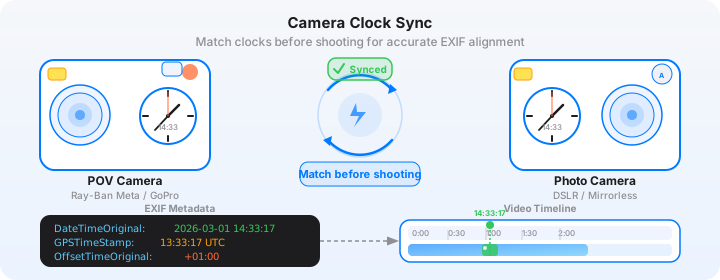
Accurate EXIF sync depends on both cameras sharing the same time reference. The Meta Gen 2 handles this automatically — it syncs its clock to your iPhone every time the Meta View app connects. You never need to think about it.
The X100VI is the only camera that requires manual attention. It has no GPS receiver and no network time protocol. Its clock relies entirely on your last manual setting, and camera clocks drift — often by 20 to 60 seconds per week under normal conditions.
The 30-Second Clock Sync Routine
Before every street session, run through this sequence:
- Open the Clock app on your iPhone and note the current time to the second
- On the X100VI, navigate to the wrench (setup) menu and select Date/Time Setting
- Set the camera's time to match your iPhone — match hours, minutes, and seconds as closely as possible
- Confirm and exit the menu
- Open the Meta View app and verify it shows your glasses as connected (confirming clock sync)
- Start shooting
This takes about 30 seconds and it is the single most important preparation step in the entire workflow. POV Syncer's four-strategy EXIF matching handles timezone offsets, GPS UTC corrections, and device clock fallbacks automatically — but it cannot correct for a source clock that was set incorrectly. Get the X100VI clock right and the sync will be accurate to within one or two frames, which is imperceptible in the finished video.
How POV Syncer Resolves Cross-Brand EXIF
Fujifilm JPEG files write a rich EXIF block that includes DateTimeOriginal, OffsetTimeOriginal (the timezone offset), and optionally GPSDateStamp and GPSTimeStamp if a GPS unit or phone is connected. POV Syncer uses a four-strategy cascade to extract the most accurate timestamp from any file: GPS UTC first (highest accuracy), then OffsetTimeOriginal with timezone correction, then device timezone fallback, then filename pattern parsing as a last resort.
In practice, for an X100VI without GPS, POV Syncer uses DateTimeOriginal and OffsetTimeOriginal together to correctly resolve the timezone and place each photo on the Meta video timeline. No configuration required — the app handles Fujifilm's EXIF format automatically. For a deeper explanation of exactly how this works, see our guide to EXIF timestamps and automatic photo sync.
The POV Syncer Workflow: Import to Export in Under 60 Seconds
Here is what the editing process looks like with POV Syncer compared to what it looks like without it. Without it: three to four hours of scrubbing footage, manually placing photos on a timeline, adjusting offsets by hand, adding text, exporting. With it: everything below.
Step 1 — Import Your Footage
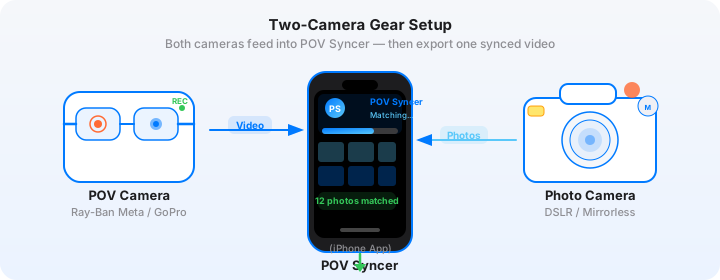
Transfer your Meta Gen 2 footage to your iPhone through the Meta View app. This happens automatically over WiFi when you return within range of your home network, or you can trigger a manual sync in the app. Transfer your X100VI JPEGs using the Fujifilm Bluetooth/WiFi app or via a Lightning/USB-C card reader. Both files land in your Photos library.
Step 2 — Automatic EXIF Match
Open POV Syncer and create a new project. Select your Meta Gen 2 video clip and your X100VI JPEGs. Tap the sync button. POV Syncer reads the EXIF DateTimeOriginal from every JPEG and calculates each photo's precise position on the video timeline — which second it belongs at, which frame. For a session with thirty photos, this takes about three seconds. What took hours is now done.
Step 3 — Review and Trim the Timeline
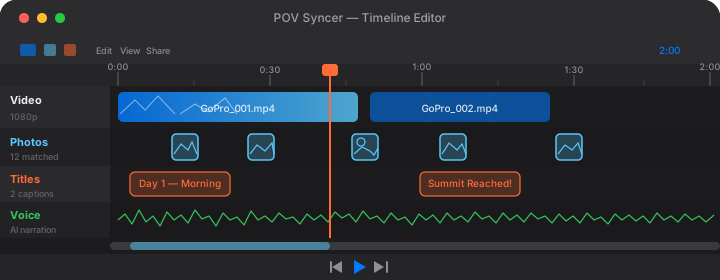
The 4-track timeline shows your video on track one, your matched photos appearing as markers on track two, title card slots on track three, and an AI narration waveform on track four. Scrub through and verify the matches look correct — each photo should appear at the moment you see yourself raising the X100VI in the glasses footage. Trim the video to your most compelling passage using the handles on track one.
Step 4 — Add Titles and Narration
Choose from 15 premium fonts to add an opening title card (location, date, time of day). A clean editorial typeface over a frosted glass background sets the context immediately. One or two title cards placed at your strongest photos — showing the camera settings, or a brief note on what you saw — turn a portfolio video into a teaching moment.
For the narration track, write 50 to 100 words about your approach during the session. What were you looking for? What made you stop and shoot? One of POV Syncer's premium AI voices reads it back in seconds. Or tap the microphone icon to record your own voice directly — it adds an authenticity that AI cannot fully replicate, though it requires a quiet room. Either way, keep the narration sparse: the ambient street audio from the Meta Gen 2 microphones is part of what makes the format compelling.
Step 5 — Export
Tap export and choose your format. For Instagram Reels, export at 9:16 (1080x1920) and keep the duration under 90 seconds. For YouTube, export at 16:9 and let the session breathe — a 10 to 15 minute street process video can hold a photography audience's attention if the footage and narration are strong. POV Syncer handles the crop and resolution automatically. The export renders in seconds on a current iPhone.
Want settings cheat sheets for 20+ camera combos?
Join 1,000+ photographers getting weekly tips. We cover Ray-Ban Meta, GoPro, DJI Action, Insta360, and every major street camera — settings, EXIF workflows, and editing techniques, straight to your inbox.
Free, no spam. Unsubscribe anytime.
Tips and Results: Getting the Most From This Combo
Shoot More Than You Think You Need
On a session intended for a POV video, fire more frames than your usual street instinct suggests. The X100VI's shutter is quiet — particularly in electronic shutter mode — and the camera handles high-volume shooting without breaking a sweat. More shots mean more moments where the timeline transitions from video to a still, and more choices in the edit. In POV Syncer you can easily exclude photos you do not want to appear; you cannot go back and shoot a moment you chose not to capture.
Resist the Rear Screen
The temptation on the X100VI is to check the rear screen after every shot. For POV video, this is counterproductive: the Meta Gen 2 footage will show you looking down at the camera instead of continuing to observe the scene. Shoot, lower the camera, keep moving. Review at the end of the session, not during it. The footage will be significantly more interesting as a result — it shows you thinking like a photographer, not auditing your work like a tourist.
Let the Audio Breathe
The Meta Gen 2 microphones capture ambient city sound with genuine quality for smart glasses hardware — footsteps on pavement, distant traffic, the quiet mechanical shutter of the X100VI, snippets of overheard conversation. Do not cover all of it with music or narration. Let the audio breathe. The contrast between ambient street sound and a sparse, thoughtful narration voice creates a meditative quality that suits the genre perfectly and keeps audiences watching.
Classic Chrome and the Meta Gen 2 Video Palette
The Meta Gen 2's video colour science is warm and slightly saturated — a deliberate look engineered for social media consumption. Classic Chrome on the X100VI is cool, slightly desaturated, and film-like. These two colour palettes contrast pleasingly in a finished video: the POV footage has a warm, present-tense energy, while the stills that appear have a colder, more considered quality. You do not need to colour grade either — the contrast between them is the aesthetic.
What the Finished Video Looks Like
A well-assembled Meta Gen 2 and X100VI street process video is unlike almost anything else in the photography content space. The footage is genuinely immersive — you are seeing a photographer's literal point of view, not a staged "behind the scenes" segment with a camera pointed at them. The stills appear with precise timing, each one arriving at exactly the moment it was captured, making the connection between intention and result immediately readable to the viewer.
For a 90-minute street session, POV Syncer typically produces a 10-to-15 minute timeline that you can then trim to 90 seconds for Reels or keep longer for YouTube. The matching takes seconds. The trimming, title placement, and narration take another five to ten minutes. You are done and posting before the morning light has even changed.
Compare that to three to four hours of manual editing in Premiere Pro. The time savings are not marginal — they are the difference between making process content consistently and making it occasionally, when you can face the editing grind. Consistency is what builds a photography audience. POV Syncer makes consistency possible.
Exporting for Instagram Reels and YouTube
Instagram Reels: The 9:16 Street Edit
Export at 9:16 (1080x1920) and keep the duration under 90 seconds. The vertical crop of the Meta Gen 2's 16:9 footage works surprisingly well for street content — it tightens naturally around the vertical elements of urban environments: building faces, pedestrian figures, doorways, archways. Add one or two title cards. Keep the narration under 60 words. End on your strongest photo. That structure works.
YouTube Long-Form: The Full Process Video
Export at 16:9 for YouTube's standard player. A 10-to-15 minute street process video can hold a photography audience's attention when the footage is genuine and the narration has substance. Structure the video in clear acts — Arrival, The Hunt, The Shots, Review — and add chapter timestamps to your description. YouTube's algorithm rewards watch time and chapters help viewers stay engaged through the full run. POV Syncer's Pro tier includes all 15 fonts, which is what you want for YouTube-quality output.
Conclusion: Two Cameras, One Workflow, Seconds Instead of Hours
The Ray-Ban Meta Gen 2 and Fujifilm X100VI is the most popular POV street photography pairing for a reason. Both cameras are designed to disappear — one on your face, one in your hand — and let you shoot without performing. The footage is authentic because it is genuinely documentary. The images are exceptional because the X100VI is an exceptional camera. And now the editing is fast because POV Syncer handles the one thing that used to make this workflow painful: matching every shot to its precise moment in the video, automatically, using the EXIF data that was already there.
What used to take three to four hours of manual editing in Premiere Pro now takes under sixty seconds. Your first street process video is one session and one tap away.
Create your first POV video in 60 seconds
Download POV Syncer free and turn your Meta Gen 2 footage and X100VI stills into a finished street process video — no manual scrubbing, no tedious timeline placement, no editing grind.
Free app, free cheat sheet, no spam. Unsubscribe anytime.