How to Edit Ray-Ban Meta Videos with Your iPhone Photos
You just got back from a morning walk through the city. Your Ray-Ban Meta glasses captured an hour of uninterrupted POV footage — the light hitting the buildings, the rhythm of your stride, the decisive moment you stopped to watch a street performer. And on your iPhone 15 Pro, you fired off 40 sharp stills with the 48MP main sensor.
The problem? You have two sets of media, two separate apps, and no obvious way to combine them into a single, compelling video. You could edit manually — scrubbing through the footage, eyeballing which photo belongs where — but that defeats the purpose of carrying two cameras in the first place.
Ray-Ban Meta video editing used to mean a lot of guesswork. Now it takes about three minutes, because every photo your iPhone takes embeds a precise EXIF timestamp, and POV Syncer uses those timestamps to drop each photo into exactly the right moment of your glasses footage. This guide walks you through the entire workflow, from recording to published Reel.
Why Ray-Ban Meta and iPhone 15 Pro Work So Well Together
The Ray-Ban Meta glasses are a genuinely unusual piece of camera hardware. The 12MP ultrawide sensor sits flush with the frame, recording video from your actual eye level with zero camera-consciousness from the people around you. The footage has a documentary quality that no handheld camera can fully replicate — you get the tilt of your head, the micro-movements of walking, the natural sweep of a glance.
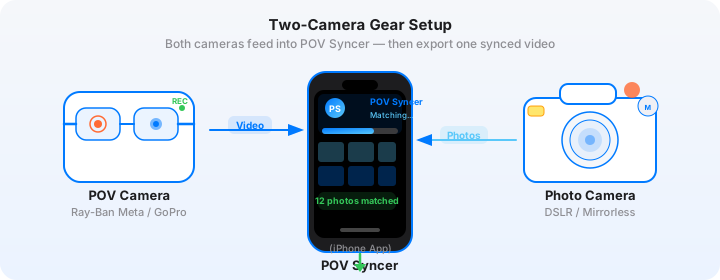
What the glasses cannot do is resolve detail. The fixed-aperture ultrawide lens is built for candid capture, not for the clinical sharpness of a decisive-moment frame. That is where your iPhone 15 Pro comes in. Raise it for a shot, fire the shutter, lower it. The glasses keep recording. You end up with wide-angle context from the glasses and tack-sharp portraits, architecture details, and street scenes from the iPhone — two completely different perspectives of the same moment.
The EXIF metadata embedded in every iPhone photo is what makes this combination work in software. Each image records the exact second it was captured, referenced to your device clock. Your Ray-Ban Meta video has a start time and a frame rate. Do the arithmetic, and you can place any photo at the precise frame in the video where it was taken. POV Syncer does that arithmetic automatically.
Optimal Ray-Ban Meta Video Settings
Before you head out, spend two minutes in the Meta View app adjusting the glasses' video settings. The right configuration makes your footage significantly more useful in the edit.
Resolution and Frame Rate
1080p at 30fps is the sweet spot for most street photography use cases. The files are manageable, the battery lasts about 60 minutes of continuous recording, and 30fps reads as natural and documentary on social platforms. Instagram Reels plays at 30fps natively, so you get a frame-accurate export with no interpolation artifacts.
If you are planning content where motion smoothness matters — skating, cycling, walking through crowds — shoot at 1080p 60fps. You will get about 35 minutes of battery life instead of 60, and your files will be roughly twice the size, but slow-motion playback at half speed looks genuinely cinematic. The tradeoff is worth it for dynamic subjects.
Avoid 720p. The quality difference is visible on modern phone screens, and storage is cheap enough that there is no practical reason to compromise.
Audio
Leave the built-in microphones on. The glasses capture ambient sound that provides valuable context in the edit — street noise, music, conversation fragments. Even if you plan to add AI narration in POV Syncer, the ambient audio gives you something to mix under the voice track.
Get the settings right the first time
Download the free POV Photographer's Cheat Sheet — camera settings, EXIF tips, and export presets for Ray-Ban Meta, GoPro, DJI, and Insta360 on one printable page.
Free PDF, no spam. Unsubscribe anytime.
iPhone 15 Pro Settings for the Best EXIF Sync
Your iPhone photos need accurate EXIF timestamps for the sync to work precisely. A few settings make a real difference.
Use the Native Camera App
Third-party camera apps sometimes write EXIF timestamps inconsistently, or they record the time the file was saved rather than the time the shutter fired. The native iOS Camera app always writes a precise DateTimeOriginal field the moment you press the shutter. Stick with it for maximum sync accuracy.
Photo Format
Shoot in HEIF (High Efficiency) format for everyday street work. Files are about half the size of equivalent JPEGs with no visible quality loss, and HEIF preserves full EXIF data including GPS coordinates, timezone offset, and subsecond timestamps. If you are shooting for print or professional clients, use Apple ProRAW — POV Syncer handles both formats without any conversion step.
Make Sure Both Devices Are on the Same Time Zone
This is the most important setting of all. If your Ray-Ban Meta glasses and your iPhone are set to different time zones — or if one of them has the clock slightly wrong — every photo will be placed a few seconds off in the video. Check that both devices are running automatic time sync before you leave the house. On iPhone, go to Settings > General > Date & Time and confirm "Set Automatically" is enabled. The Meta View app syncs to your phone's clock when connected, so getting the iPhone right gets both devices right.
How POV Syncer Brings the Footage Together
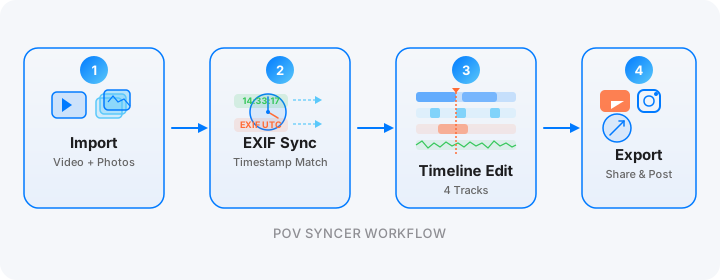
With your glasses footage and iPhone photos on your phone, open POV Syncer and tap "New Project." The import step takes about 30 seconds.
Step 1: Import Your Media
Select your Ray-Ban Meta video file from your camera roll or the Files app. Then select the photos you want to include — you do not have to be selective here, because POV Syncer only places photos whose timestamps fall within the video's duration. If a photo was taken two hours before or after the video, it simply will not appear.
The import screen shows a quick preview of how many photos match the video's timespan. On a 60-minute walk, you might import 80 photos and find that 60 of them land within the footage.
Step 2: Automatic EXIF Matching
Tap "Sync" and watch POV Syncer work through its four-strategy matching system. It reads the OffsetTimeOriginal field to resolve timezone differences, checks GPS UTC timestamps when available, applies GPS-corrected timezone offsets for cameras that travel across time zones, and falls back to device timezone if none of the primary strategies fire. In practice, this means your photos land within one second of where they belong in the video, regardless of which camera combination you are using.
The matched photos appear as thumbnail markers on the video timeline. Each marker shows the photo and its exact placement. You can scrub through the video to see exactly where each photo appears.
Step 3: Edit on the 4-Track Timeline
This is where Ray-Ban Meta video editing gets interesting. POV Syncer's timeline gives you four separate tracks: Photos, Titles, Voice, and Effects.
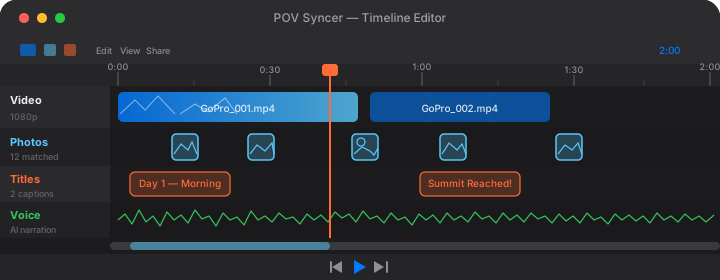
The Photos track shows your matched images as clips. You can drag any photo left or right to fine-tune its placement, extend how long it displays, or remove it entirely if it does not work in context. The default display duration is 2.5 seconds per photo — long enough to register but short enough to keep the video moving.
The Titles track lets you add text overlays at any point in the video. For street photography content, a location name at the start and a simple caption on a key photo can anchor the story. POV Syncer includes 15 fonts across styles from clean sans-serif to editorial serif, and 10 background treatments from transparent to frosted glass to bold solid color.
The Voice track is where you add AI narration. Type your script — something like "Shot on a Tuesday morning in Shoreditch, chasing the light before the market crowds arrived" — select a voice from the premium AI voice library, and the narration renders in seconds. You can also record your own voiceover directly into this track.
The Effects track handles the shutter sound that plays each time a photo appears. That mechanical click is a surprisingly effective storytelling device — it reminds the viewer that they are watching a photographer at work.
Step 4: Export for Instagram Reels
When the edit feels right, tap Export and choose your platform. For Instagram Reels, select the 9:16 vertical preset — POV Syncer crops the 16:9 Ray-Ban Meta footage intelligently, keeping the action centered. The output is 1080x1920 at the frame rate you recorded, with all overlays composited cleanly.
For TikTok, use the same 9:16 preset. If you want to post to Stories as well as Feed on Instagram, the same file works for both.
Try it free on the App StoreCamera Settings Cheat Sheet
Here is the quick-reference setup for a Ray-Ban Meta and iPhone 15 Pro street session.
Ray-Ban Meta
- Resolution: 1080p (standard) or 2.1K (if your phone has storage)
- Frame rate: 30fps for documentary feel, 60fps for motion-heavy subjects
- Audio: On, both microphones
- Clock sync: Connected to iPhone via Meta View app before shooting
- Battery tip: Carry the charging case; it adds roughly two full charges
iPhone 15 Pro
- Format: HEIF for everyday shooting, Apple ProRAW for critical work
- Camera app: Native iOS Camera only (third-party apps may write inconsistent timestamps)
- Time: Settings > General > Date & Time > Set Automatically: ON
- Location services: Camera app: Always On (enables GPS coordinates in EXIF, which improves sync accuracy)
- Lens: Main 48MP sensor for most street shots; the 5x telephoto for compressed street scenes
Tips for Better Results in POV Syncer
Trim the Video First
Ray-Ban Meta footage tends to be long. If your walk was 60 minutes but the interesting material was concentrated in 20 minutes, trim the video in the iOS Photos app before importing to POV Syncer. Shorter source footage means fewer photos to review, a faster sync step, and a more focused edit.
Use the Photo Duration Slider
The default 2.5-second photo display works well for fast-paced content. For a more contemplative, editorial pace — the kind that suits fine art street photography — push the display duration to 4 or 5 seconds. The viewer has time to actually look at the image before the video continues. This is a small adjustment that dramatically changes the feel of the finished piece.
Add a Location Title at the Start
One simple text overlay at the opening of the video — "Shoreditch, London" or "Lower East Side, 7am" — immediately gives the viewer a frame of reference. It takes 30 seconds to add and makes the content feel intentional rather than casual.
Match Your Narration Tone to Your Footage
If the Ray-Ban Meta footage is fast-paced and urban, a narration voice with a slightly quicker tempo and confident delivery works better than a slow, reflective one. POV Syncer lets you preview multiple voices before committing. Spend a minute listening to how each voice reads your specific script — the difference can be significant.
What the Finished Video Looks Like
A well-edited Ray-Ban Meta and iPhone piece has a rhythm that is hard to achieve any other way. The video plays — you see the street from eye level, hear the ambient noise, feel the pace of the walk — and then a photo appears, sharp and composed, holding on screen just long enough to make its point before the video resumes. If you have added narration, the voice grounds the viewer in your intent without over-explaining the images.
The shutter sound on each photo arrival is a subtle but effective touch. It signals "this is the moment I stopped and made a deliberate choice to photograph." It distinguishes the photos from casual video stills.
The export quality from POV Syncer is clean enough for professional use. No watermarks on any tier, full resolution, accurate color. What you see in the preview is what gets posted.
Getting Started
POV Syncer is free to download on the App Store. The free tier is fully featured — unlimited imports, the full 4-track timeline editor, all 15 fonts and 10 background styles, custom audio and voice recording, the music library, and clean unwatermarked export. Pro adds AI voice narration with six neural voices, a reusable Voice Library, and karaoke captions for $9.99 per month or $99.99 per year.
If you are already shooting with Ray-Ban Meta glasses and an iPhone, you have everything you need for compelling POV content. You are just missing the tool that joins the two cameras together.
Ready to sync your Ray-Ban Meta footage?
Download POV Syncer free and have your first video ready to post in under 10 minutes.
Download POV Syncer Free