The Problem with Desktop-First Travel Editing
The standard advice for travel vloggers is to bring a laptop, back up footage every night, and edit in Premiere Pro or Final Cut Pro when you get home. This works, but it has a serious flaw: by the time you are editing, the trip is over. The emotional connection to the footage has faded. You cannot remember why you stopped to photograph that particular doorway, or what was happening just before you turned the corner.
The alternative is editing while you travel — a day's footage edited in the evening before the next day starts. You remember everything. You know which moments mattered. The edit is faster and the result is more honest because you are not guessing at meaning from a distance.
The barrier to this approach has been the editing tools themselves. Desktop editors are powerful but slow and require a full setup. Phone editing apps are fast but have always lacked the key capability that makes travel vlog editing distinctive: the ability to match your POV camera footage with still photos taken during the same session, placed at the precise moments they belong.
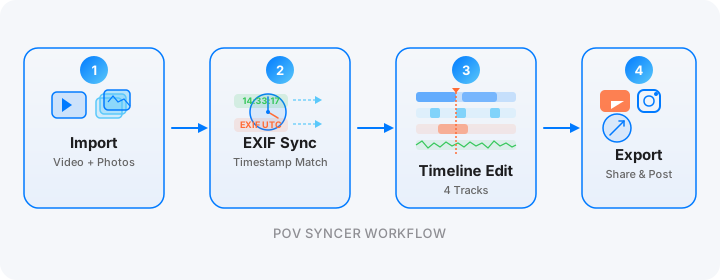
That is exactly what POV Syncer does. Import your footage and your photos, and the app uses EXIF timestamps to place every photo at its exact moment in the video. No manual alignment. No guessing. Just a timeline that reflects the day as it actually happened.
Get the settings right the first time
Download the free POV Photographer's Cheat Sheet — camera settings, EXIF tips, and export presets for Ray-Ban Meta, GoPro, DJI, and Insta360 on one printable page.
Free PDF, no spam. Unsubscribe anytime.
What Gear You Need (Hint: Not Much)
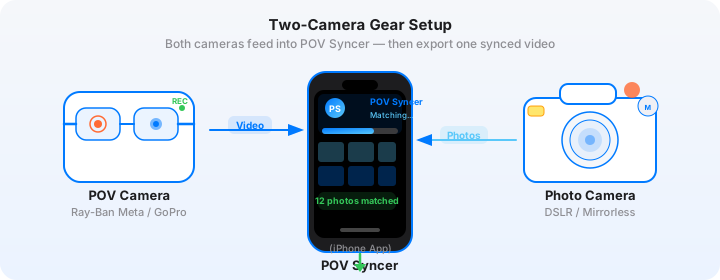
The beauty of the mobile-first approach is that POV Syncer works with any POV camera that saves EXIF timestamp data — which is every action camera and smart glasses camera made in the past five years. And your stills camera can be anything from a dedicated mirrorless to your iPhone's rear camera.
Minimum Setup
- Any POV camera: GoPro (any Hero model), DJI Action 4/5, Insta360 X3/X4, Ray-Ban Meta glasses, or a chest/head-mounted phone
- Any stills camera: your iPhone, a mirrorless camera, a compact camera — anything that saves EXIF DateTimeOriginal
- An iPhone running iOS 16 or later
- A USB-C or Lightning card reader (if importing from a dedicated camera)
- POV Syncer installed on your iPhone
You do not need a specific camera brand combination. You do not need RAW photos. You do not need 4K footage. The system works with whatever you have, as long as the stills camera saves EXIF timestamps — which is essentially everything.
iPhone as the Stills Camera
If you are shooting with a GoPro or DJI Action camera as your POV device and using your iPhone for still photos, the EXIF matching works perfectly because iOS saves precise timestamps in every photo. The iPhone Camera app records EXIF DateTimeOriginal with nanosecond accuracy, and since your iPhone clock is always synced via the network, there is no clock drift to worry about.
Shoot iPhone photos in HEIF format (the default) for the smallest file size with lossless quality. POV Syncer reads HEIF EXIF data exactly as it does JPEG — no conversion required.
Getting Organized Before You Start Editing
The single most important thing you can do to make mobile editing fast is to organize your files before you open POV Syncer. Five minutes of organization at the start saves twenty minutes of searching during the edit.
Folder Structure for Multi-Day Trips
Create a folder in your iPhone's Files app for each day of the trip. If you are on a 7-day trip, you will have 7 folders. Transfer each day's footage and photos into the correct folder the same evening. This sounds obvious but it is the difference between an edit that takes 20 minutes and one that takes an hour while you try to figure out which video was from which day.
Label folders by date and location, not by number. "March-12-Lisbon" is more useful than "Day-3" three weeks later when you are back home and want to find specific footage.
Batch Photo Import Strategy
In POV Syncer, when you tap to add photos to a project, you can select multiple photos at once from your Photos library or from Files. For a day with 50 photos and a 30-minute GoPro clip, select all 50 photos in one go. POV Syncer handles the matching for all of them simultaneously — it is not faster to add them one at a time, and the batch approach means you do not accidentally miss a photo.
If you shot photos with multiple cameras in a single day — say, iPhone photos in the morning and GR IIIx photos in the afternoon — you can import all of them at once. POV Syncer matches each one individually to the video based on its own EXIF timestamp, regardless of what camera it came from.
Transferring Action Camera Footage to iPhone
Most action cameras transfer footage to iPhone via a companion app over Wi-Fi, but for files larger than a few hundred megabytes this is impractically slow. Use a USB-C to USB-A adapter with a card reader, or a dedicated USB-C card reader that connects directly to your iPhone's Lightning or USB-C port.
Transfer time for 60 minutes of 4K GoPro footage via card reader: approximately 8 minutes. Transfer time over Wi-Fi: 45+ minutes. Use the card reader.
The Day-by-Day Editing Workflow
Here is the complete mobile workflow, day by day, for a 5-day trip.
Evening Editing Session (30–45 minutes per day)
- Transfer files. Connect the card reader. Copy the day's video footage into the day's folder in Files. iPhone photos are already in your Photos library.
- Open POV Syncer and create a new project. Name it by date and location.
- Import video. Select the day's POV footage from Files. For Pro users, you can chain multiple clips from the same day — useful if you stopped and restarted the GoPro several times.
- Import photos. Tap to add photos. Select all photos taken that day from Photos or Files. POV Syncer runs the EXIF matching automatically.
- Review and trim. Scrub through the timeline. Remove any photo placements that fell during uninteresting sections of footage. Drag photo clips to fine-tune their position if needed.
- Add titles. Location cards, time stamps, key moments. Use the Titles track in the 4-track timeline.
- Add narration. Write AI narration for 2 to 3 key moments. Keep each segment under 15 seconds.
- Export. Use the YouTube or Instagram preset. Export runs in the background — you can use your phone for other things while it processes.
- Save the project. POV Syncer saves everything. If you want to revise the edit tomorrow, reopen the project and all your media and edits will be exactly as you left them.
That workflow, once you have done it twice, takes around 30 minutes per day for a typical 3 to 5 minute video. By the end of the trip you will have 5 finished videos ready to upload — or you will have saved projects from each day that you can combine into a longer highlight reel when you get home.
Using POV Syncer's Timeline Editor on iPhone
The 4-track timeline editor in POV Syncer is designed for iPhone. All four tracks — Photos, Titles, Voice, Effects — are visible simultaneously, and you can pinch to zoom in on specific sections for precise edits. Drag the playhead to scrub through the video. Tap any clip to edit its timing, duration, or content.
The most useful timeline habit for travel editing: after auto-matching, zoom in on each photo placement and check that it falls at a visually appropriate moment. A photo of a market stall should appear when the video footage shows you approaching or inside the market, not during a transit section. The auto-matching is accurate — the photo appears at the exact second you took it — but that second might have been when you were looking at the ground between footsteps. Drag the photo clip a second or two to align it with the visually strongest nearby moment.
Handling Multi-Day Editing
Building a Week Highlight Reel
If you have been editing each day as you go, you now have 5 to 7 saved POV Syncer projects by the end of the trip. Building a week highlight reel from these is straightforward with POV Syncer Pro's multi-clip editing.
Create a new project. Import the best section of video from each day — typically 30 to 60 seconds per day for a 5-minute highlight reel. Then import a selection of the best photos from the whole trip. POV Syncer matches them to the correct moments across all the clips.
The result is a chronological highlight reel where each day's best photos appear at their correct moments in the footage from that day, even though you are mixing clips from different days in a single project.
Consistent Style Across Multiple Videos
If you are producing a series of day-by-day videos plus a highlight reel, visual consistency matters. Choose one background style and one font in POV Syncer and use it across all projects in the series. Viewers who watch multiple videos from your trip will recognize the consistent aesthetic as a stylistic choice rather than inconsistency.
POV Syncer Pro gives you 10 background styles and 15 fonts. Pick your combination once at the start of the trip and stick with it. Changing it mid-series is more work than it is worth.
Platform-Specific Export Tips
YouTube Long-Form
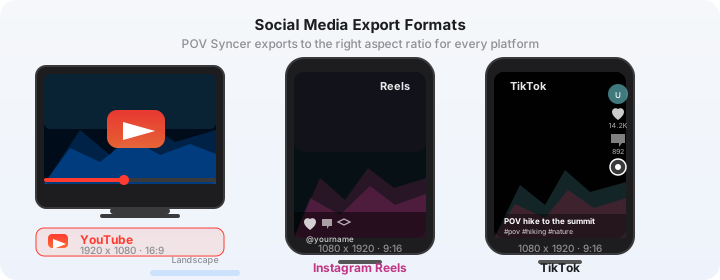
For YouTube, export at 4K 16:9 using the YouTube preset in POV Syncer. Target length: 5 to 12 minutes per day video, 10 to 20 minutes for a full trip highlight reel. YouTube's algorithm rewards watch time, and travel content with photo highlights creates natural forward momentum — viewers stay to see the next photo reveal.
Title your videos with the location prominently: "3 Days in Porto — POV Walking with Photo Highlights" performs better than "Travel Vlog EP3" for search discovery.
Instagram Reels
Instagram Reels performs best at 15 to 60 seconds for discovery. For Reels, cut a single highlight moment from your travel video — one location, one photo reveal, one narration beat. Export at 9:16 using the Reels preset. POV Syncer crops the 16:9 footage to fit the vertical frame.
Post the Reel as a teaser for the full YouTube video. Include the YouTube link in your bio and reference it in the caption.
Exporting Both Formats from One Project
You do not need to create separate projects for YouTube and Instagram exports. In POV Syncer Pro, you can export the same project at multiple aspect ratios. Export 16:9 first for YouTube, then switch to 9:16 and export again for Reels. The photo placements adapt to the new aspect ratio — photos are repositioned to remain centered in the vertical frame.
AI Narration: The Mobile Vlogger's Secret Weapon
One of the reasons travel vlogs shot entirely on a phone or action camera often feel thin is that they lack a voice explaining what we are seeing. The narrator creates context — who took this photo, what was happening, why this moment mattered.
Recording a voiceover on your phone is possible but awkward: ambient noise, microphone placement, the need for a quiet space. POV Syncer's AI voice narration sidesteps all of this. You type the narration, choose a voice, set the timing, and the AI handles the rest. The result is a clean, professional voiceover that adds context without requiring you to find a quiet room in a hotel.
What to Narrate
Narration works best when it adds information the footage cannot convey on its own:
- Location names and historical context: "This is the Ribeira district, Lisbon's oldest neighborhood, mostly rebuilt after the 1755 earthquake."
- What you were thinking: "I had been walking for three hours when I found this courtyard. It was completely empty at 9am."
- What happens next: "The market closes at noon — we made it with ten minutes to spare."
Keep each narration segment to 10 to 20 seconds. Narration over every photo overlay becomes exhausting — use it selectively, for the moments that genuinely need context.
The Complete Mobile Travel Vlog Setup
Here is everything you need, summarized:
- POV camera: GoPro, DJI, Insta360, Ray-Ban Meta, or any action camera
- Stills camera: iPhone, mirrorless, or compact — anything with EXIF
- Card reader: USB-C or Lightning to SD/USB-A
- iPhone with iOS 16+
- POV Syncer — free to start, Pro at $9.99/month or $99.99/year for unlimited projects, AI narration, and all export formats
No laptop. No desktop software. No waiting until you get home.
Start your first travel vlog project today
Download POV Syncer free. Import your footage and photos, let the EXIF matching handle the heavy work, and have a finished video ready before tomorrow's adventures start.
Download POV Syncer FreePro: $9.99/month or $99.99/year — start with free tier, upgrade when you need it
Troubleshooting Common Mobile Workflow Issues
Photos Are Not Matching to the Right Moments
The most common cause is a clock mismatch between your POV camera and your stills camera. Check that both devices were showing the same local time at the start of your shooting session. In POV Syncer's timeline editor, you can manually drag mismatched photos to their correct positions — and if there is a consistent offset (say, all photos are 10 minutes early), that is a clock problem you can fix by adjusting the UTC offset setting on the camera for future sessions.
Videos Are Too Large to Import Quickly
If you are importing an hour of 4K GoPro footage and only plan to use 5 minutes of it, trim the footage first using the GoPro app's trim feature before importing into POV Syncer. The smaller file imports faster and the auto-matching runs more quickly. For multi-clip projects in Pro, you can import exactly the sections you need rather than entire raw files.
iPhone Storage Running Low
Travel footage accumulates fast. If your iPhone is running low on storage mid-trip, save completed POV Syncer projects and export the video, then offload the raw footage to iCloud, a portable SSD, or a travel router with USB storage. POV Syncer's saved projects are lightweight — the media is referenced, not embedded in the project file, so the project itself is small even when the media is large.
What a Five-Day Mobile Travel Edit Looks Like
Day 1: You arrive in Dubrovnik. Forty minutes of GoPro footage, 23 photos from the iPhone Camera app. That evening, POV Syncer matches all 23 photos to the footage. You trim to 4 minutes, add 3 AI narration segments, and export a YouTube video. Total editing time: 35 minutes.
Day 2 through 5: The same process each evening. By the last night of the trip, you have 5 published videos and 5 saved projects ready to be combined into a highlight reel.
Day 6 (travel home): Create a new project. Import the 5 best clips from each day (30 seconds each) and the 10 best photos from the whole trip. POV Syncer matches them chronologically. Add a music bed via custom audio import. Export the 4-minute highlight reel. Upload on the plane.
That is a travel vlog workflow that produces 6 videos from a 5-day trip — entirely on your iPhone, entirely without a desktop editor.