The One Setting That Makes Ray-Ban Meta Videos Look Pro
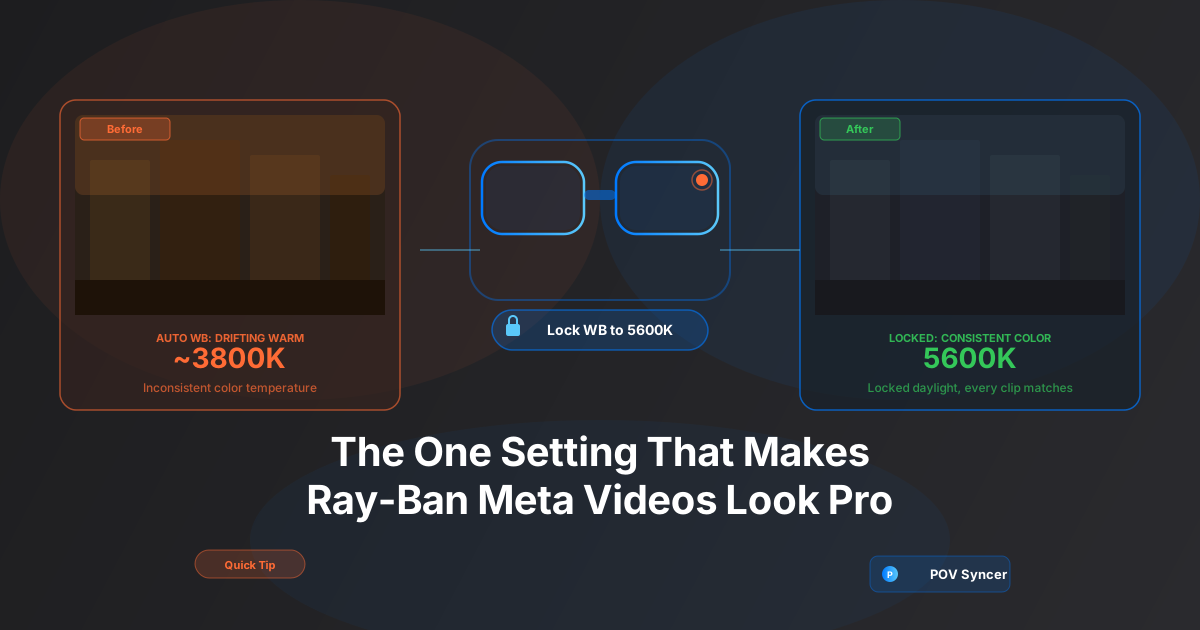
You finish a morning street session, transfer the footage from your Ray-Ban Meta Gen 2 to your iPhone, and start scrubbing through it. The first few clips look great — warm golden-hour light, clean colors. Then you duck under an awning to check your camera settings and the footage turns cold and blue. You step back into the sun and it shifts warm again. Five seconds later you walk through a shadow between buildings and it drifts somewhere in between.
By the time you are in POV Syncer trying to build a polished timeline, you have a color temperature nightmare. Every clip looks slightly different from the one before it. Nothing cuts together cleanly. The footage that looked promising on the glasses now looks like it was shot by three different cameras on three different days.
There is one setting in the Meta View app that stops all of this before it starts. It takes about 10 seconds to change, you only have to do it once, and the difference in your finished video is immediately visible.
Why Auto White Balance Is the Enemy of POV Video
White balance controls how your camera interprets color temperature — how "warm" or "cool" it renders the light in a given scene. At 3200K, everything looks tungsten-orange like indoor lamplight. At 5600K, you get neutral daylight. At 7000K, things go cool and blue like open shade.
Auto white balance (AWB) is designed to make your camera look "correct" in any lighting. For casual snapshots, that is fine. For video — especially continuous POV footage that you are going to cut together — it is a problem. The Ray-Ban Meta Gen 2's AWB algorithm is constantly reassessing and adjusting the color temperature as the light changes around you. It is doing exactly what it is designed to do. It just happens to be completely wrong for your purposes.
What You Actually See in Your Footage
The damage from AWB shows up in two ways. The first is gradual drift: as you walk from an open plaza into a shaded alley, the camera slowly shifts from warm to cool over five or ten seconds of footage. In a finished video this looks like the exposure or color grade is broken. It draws the viewer's attention to the camera rather than to the scene.
The second problem is harder to fix in post: AWB shift mid-clip. If you are shooting a scene where both sun and shade are in frame simultaneously — a doorway, the edge of a building shadow, a park bench half-lit by dappled light — the algorithm can visibly oscillate. The footage actually pulses between warm and cool as the camera tries to average a scene that cannot be averaged cleanly. This is not a subtle artifact. It looks like a video processing glitch.
Neither of these problems is recoverable in the edit without frame-by-frame color correction, which is the kind of work that turns a 30-minute POV session into a 3-hour editing ordeal. The fix is to prevent them from happening in the first place.
Get the free POV Photography Cheat Sheet
Optimal settings for Ray-Ban Meta Gen 2, GoPro, DJI, and Insta360 — white balance, frame rate, resolution, and EXIF sync tips — all on one printable page. Join 1,000+ photographers getting weekly tips.
Free PDF, no spam. Unsubscribe anytime.
The Fix: Lock White Balance to 5600K Daylight
Daylight is 5600K. It is the color temperature that film was balanced for, that studio photographers dial in as a baseline, and that your eye's visual cortex treats as neutral outdoors. When you lock the Ray-Ban Meta Gen 2's white balance to 5600K, you are telling the camera to stop guessing and just render the scene as it looks in standard outdoor daylight.
This does not mean everything will look identical regardless of light — deep shade will read slightly cooler, golden hour will read warmer. But it will do so consistently, clip to clip, because the camera is applying the same mathematical transform to every frame. When you cut two clips together in POV Syncer's timeline, they will match. If you want to warm them up or cool them down in post, you do it once and it applies everywhere.
How to Change White Balance in Meta View
Open the Meta View app on your iPhone. At the bottom of the screen, tap Capture. Tap the settings gear in the top-right corner. Under Video Settings, you will see a White Balance option — by default it is set to Auto.
Tap White Balance and select Daylight. This is the 5600K preset. There is no manual numeric entry in Meta View, but the Daylight preset maps to approximately 5600K, which is exactly what you want for outdoor street work.
That is the entire change. Two taps. The glasses will retain this setting until you change it, so you do not need to re-apply it before every session — though it is worth checking after any app update, as Meta View occasionally resets camera settings on updates.
What Changes in Your Finished Video
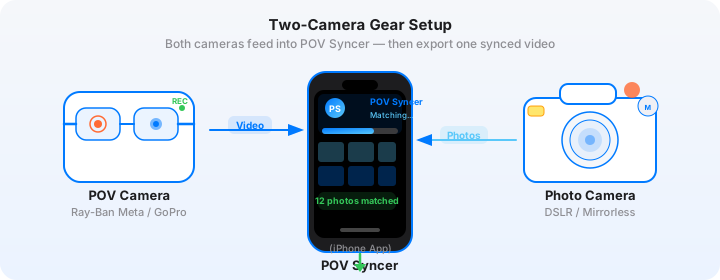
The most immediate difference you will notice is in POV Syncer's timeline. When all your clips are shot at a fixed 5600K, the video track looks coherent as a whole. Adjacent clips cut cleanly. Your photos — which were shot on a separate camera, probably with its own fixed white balance — no longer look jarring against the video because both are anchored to a consistent neutral daylight baseline.
The second difference is in the edit itself. When clips match, you spend less time second-guessing every cut. You can focus on structure and pacing rather than wondering whether the color change you are seeing is an intentional lighting shift or just AWB drift. That distinction matters more than it sounds when you are assembling a 10-minute street session into a 90-second Reel.
What 5600K Does Not Fix (And What Does)
Locking white balance solves the consistency problem. It does not solve a fundamentally underexposed or overexposed clip. If you are shooting in mixed artificial and natural light — inside a coffee shop with sunlight streaming through the windows, for example — a 5600K lock will render the indoor tungsten light very orange. In that case, switching temporarily to the Tungsten or Incandescent preset (around 3200K) before you go inside, and back to Daylight when you step out, gives you the best of both worlds.
The key principle is intentionality. A deliberate white balance choice, even if it does not produce "neutral" results, will produce consistent results. Consistent is what makes footage editable. Auto produces footage that is constantly negotiating with itself.
Download POV Syncer Free — Create Your First POV Video in 60 SecondsA Checklist Before Every Ray-Ban Meta Session
Since we are talking about settings, this is a good moment to run through the full pre-session checklist that separates footage you will actually use from footage you will delete in frustration. White balance is the most important item, but it is not the only one.
Resolution and Frame Rate
Set the glasses to 1080p at 30fps for street photography process content. The 30fps cadence has a slight documentary quality that suits the genre better than the hyper-smooth 60fps look. It also keeps file sizes manageable — a 60-minute session at 1080p30 runs to about 8GB, which is comfortably transferable over Bluetooth or USB-C to your iPhone in a few minutes.
If you are shooting for Instagram Reels specifically and want the maximum algorithm-friendly resolution, 1080p is your ceiling on the Gen 2 hardware. Save 4K shooting for the DJI Action 5 Pro or GoPro Hero 13 if ultra-sharp detail in your video track matters more than the natural, inconspicuous look of the glasses form factor.
Clock Sync: The Other Setting You Cannot Skip
If you are pairing your Ray-Ban Meta footage with stills from a Fujifilm, Sony, Leica, or Ricoh camera in POV Syncer, clock synchronisation is as important as white balance. The glasses sync their clock automatically via the Meta View app and your iPhone, so they are always accurate. Your street camera is not.
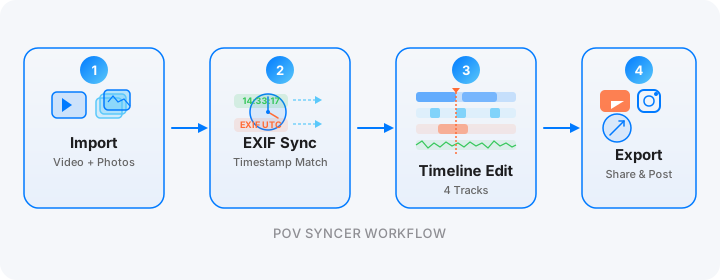
Before every session, open your iPhone's Clock app and manually set your street camera's clock to match — down to the second. POV Syncer's automatic EXIF sync reads the timestamp on each photo and places it on the video timeline at the exact frame it was shot. A clock that is 30 seconds fast means every photo will appear 30 seconds early in your video. Get the clock right and the sync is automatic and accurate; skip it and you will be manually dragging photos along the timeline for hours, which defeats the entire point of using the app.
Battery and Storage
Charge the glasses fully before a session. Ray-Ban Meta Gen 2 delivers roughly 60 minutes of continuous video recording at 1080p. For longer sessions, carry the charging case — you can get two or three full charges from it, extending your total recording time to 3-4 hours with brief charging breaks between long walks.
On the storage side, the glasses have limited internal storage. Transfer footage via the Meta View app before each session to avoid hitting the limit mid-shoot. Once footage is in your iPhone's camera roll, POV Syncer can access it directly — no additional transfers or format conversions required.
Want settings cheat sheets for 20+ camera combos?
Every Ray-Ban Meta pairing — with Fujifilm X100VI, Leica Q3, Ricoh GR IIIx, Sony A7C II, and more — has its own optimal settings. Get the full cheat sheet library free when you join our newsletter.
Free PDF library, no spam. Unsubscribe anytime.
What the Before and After Actually Looks Like
If you have footage shot on AWB that you want to understand the problem with concretely, try this: import two clips into POV Syncer — one shot in full sun, one shot in deep shade, both from the same session on auto white balance. Place them on the timeline back to back. The cut between them will almost certainly show a visible color temperature jump. On a phone screen this reads immediately as "something is wrong with this video."
Now do the same test with footage shot at a locked 5600K. The same cut — full sun to deep shade — will show a lighting change (the shade clip will be slightly darker and marginally cooler) but there will be no algorithmic jump, no sudden shift. It will look like natural light changing, which is exactly what it is. The viewer registers it as atmosphere rather than as a technical problem.
This is the difference between footage that feels immersive and footage that constantly reminds you you are watching a video. Locked white balance is the lowest-effort, highest-impact single change you can make to your Ray-Ban Meta workflow. Combine it with consistent clock sync, a fixed 1080p30 resolution, and POV Syncer's automatic EXIF matching, and what took hours of manual color correction and timeline scrubbing in Premiere or Final Cut becomes a finished, polished video in under 60 seconds.
The Takeaway
Auto white balance is the default because it works acceptably for most people in most situations. You are not most people. You are a photographer who cares about the quality of the final video — because the final video represents your work, your eye, and your process. Spending 10 seconds locking white balance to 5600K Daylight before every session is the simplest habit that separates professional-looking POV footage from footage that looks like it came from a consumer action camera on autopilot.
Your Ray-Ban Meta Gen 2 is genuinely capable hardware. Give it a fixed reference to work from and it will reward you with consistent, editable footage that cuts together cleanly in POV Syncer — every time, in every session, regardless of the lighting conditions you walk through.
Ready to put it all together?
Download POV Syncer free and turn your Ray-Ban Meta footage and street photography stills into a polished process video — automatically, in under 60 seconds.