GoPro Hero 13 POV Street Photography: Settings, Tips & Workflow
It is 9 p.m. on a Sunday. You just finished a two-hour street photography walk with the GoPro Hero 13 clipped to your chest and your Fujifilm or Ricoh in your pocket. You have 18 minutes of sharp POV footage and 40 still frames you are genuinely proud of. You open Premiere Pro, drag the clip onto the timeline, and begin the slow, grinding work of scrubbing through the footage, pausing, locating the exact moment, dragging the photo in, trimming, repositioning. An hour later you are at the six-minute mark of the video. You still have 12 minutes of footage to go.
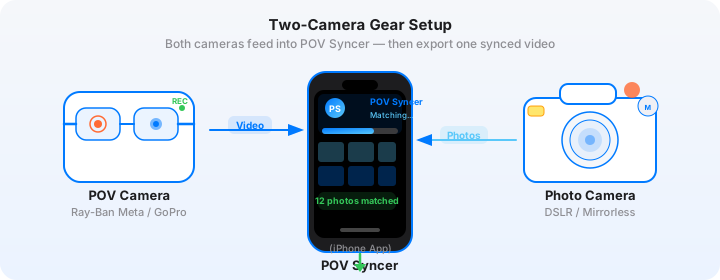
That is the editing grind most GoPro street photographers know well. And it is entirely avoidable. The GoPro Hero 13 embeds precise GPS UTC timestamps in every video frame. Your street camera — whether it is a Fujifilm X100VI, a Ricoh GR IIIx, a Leica Q3, or a Sony A7C II — writes its own EXIF timestamp to every photo. When those two clocks are in sync, there is no reason to scrub manually. The timestamps do the matching work automatically, in seconds.
This is a complete guide to the GoPro Hero 13 for street photography POV: the settings that matter, how to mount it, how to keep the clocks synced, and how POV Syncer's automatic EXIF matching turns a two-hour editing session into a three-minute export.
Get the free POV Photography Cheat Sheet
Optimal GoPro Hero 13 settings, clock sync instructions, and export presets for 20+ camera combos — all on one printable page. Free for subscribers.
Free PDF, no spam. Unsubscribe anytime.
Why the GoPro Hero 13 Works for Street Photography POV
The GoPro Hero 13 Black is the most refined action camera GoPro has shipped. For street photography POV specifically, three improvements over the Hero 12 matter most: the new magnetic lens swapping system, the significantly improved low-light performance, and the updated HyperSmooth 6.0 algorithm that handles the irregular, stop-start movement of a street walk better than any previous generation.
Street photography is not surfing or mountain biking. You are walking at a measured pace, stopping to compose a shot, turning quickly to catch someone in the frame, crouching, stepping back. The motion profile is erratic and unpredictable — and that is exactly where HyperSmooth 6.0 earns its reputation, intelligently distinguishing between intentional movement and unwanted shake.
The Lens Mod System
The Hero 13 introduced interchangeable magnetic lens mods. For street photography, the two most relevant options are the standard ultra-wide lens and the Max Lens Mod 2.0, which delivers a 177-degree field of view and horizon leveling even in 4K. That horizon leveling is genuinely useful when you are walking and shooting — your footage stays level even when your body tilts to look at something.
The 1:1 lens mod is worth considering if you primarily edit for Instagram Stories or TikTok content in a square or vertical format. It captures a native 1:1 frame that crops to 9:16 without losing anything at the sides.
Low-Light Performance for Evening Street Work
Earlier GoPro generations were essentially daylight-only cameras for usable footage. The Hero 13 changes that calculus. With Night Lapse Video mode and the updated sensor, you can shoot the golden hour and early blue hour on city streets and get footage that is genuinely presentable alongside photos from a modern mirrorless street camera. ISO performance in 4K at 30fps holds up to around ISO 800 before grain becomes distracting.
GoPro Hero 13 Settings for Street Photography
Street photography puts different demands on your GoPro than surfing or mountain biking. You are not optimising for the most extreme stabilization or the highest frame rate. You want footage that looks natural and cinematic alongside the deliberate aesthetic of your still photos. Here is what to set before a walk.
Resolution and Frame Rate
4K at 30fps is the right default for street photography POV. It looks cinematic, the files are manageable on a phone, and the slower frame rate reduces the "action cam" aesthetic that can clash with the contemplative nature of street photography. If your city walk is particularly energetic — a crowded market, a festival — consider 2.7K at 60fps, which gives you the option to add subtle slow-motion in post while keeping HyperSmooth operating at full effectiveness.
Avoid 5.3K for this workflow. The file sizes are large and the resolution benefit disappears entirely when you export to 1080p or 4K for social media. Save 5.3K for situations where you genuinely need to reframe heavily in the edit.
HyperSmooth and Horizon Leveling
Set HyperSmooth to Standard mode, not Boost. Boost mode crops the sensor more aggressively and removes almost all natural camera movement. For street photography, some natural motion — the slight rhythm of your walk, the subtle dip when you crouch — is authentic and humanising. Standard mode keeps the footage smooth without making it feel like it was shot on a gimbal.
If you are using the Max Lens Mod 2.0, enable Horizon Lock. This is a feature unique to that lens mod and it is spectacular for walking footage. Your horizon stays perfectly level regardless of how you tilt and turn your body.
ProTune Settings for Street Work
For most street photographers publishing to social platforms, the default color science with ProTune off looks good and requires no color grading. If you shoot with a camera that produces a particular look — the Fujifilm X100VI's Classic Chrome or the Leica Q3's neutral tone — you may want to match the GoPro's colour treatment to your stills. In that case:
- ProTune: On
- Color: GoPro Flat (gives maximum flexibility in post, pair with a warm LUT to match Fujifilm film simulations)
- Shutter: 1/60s for 30fps (the 180-degree shutter rule), 1/120s for 60fps
- ISO Min: 100, ISO Max: 800 for daytime; push to ISO 1600 for late-afternoon city shooting
- White Balance: 5500K for golden-hour city streets, Auto for mixed-light environments
- Sharpness: Medium — the camera's default High setting produces over-processed edges
Audio Settings
Do not overlook audio. Street photography process videos are compelling partly because of the ambient sound — footsteps on cobblestones, market chatter, a busker three blocks away. Set audio to Stereo (not Wind Reduction unless it is genuinely windy) and you will capture the acoustic texture of the street alongside the visuals. This audio becomes the bed under your AI narration in the final edit.
Create your first POV video in 60 seconds
Import your GoPro Hero 13 footage, select your photos, and POV Syncer places every shot at the exact right moment using EXIF timestamps. No scrubbing. No manual placement. No editing grind.
Download POV Syncer FreeMounting the GoPro Hero 13 for Street Photography
Mount choice shapes the entire visual language of your POV footage. Street photography has different demands from action sports: you want the camera close to your eyeline, you want it discreet enough to not change how people behave around you, and you want it stable enough to shoot without HyperSmooth working so hard it removes all human warmth from the footage.
Chest Mount
The chest mount remains the most versatile option for street photography POV. It puts the camera at roughly the mid-chest position, which reads as a credible first-person viewpoint without the vertigo-inducing swaying of a head mount. The GoPro Chesty (Performance Chest Mount) is the standard option. For a lower-profile alternative, the Shoot flat adhesive mount on a plain black t-shirt is nearly invisible at the distances you encounter on a typical street walk.
Chest height also means the camera naturally tilts slightly downward when you stand still, which catches more of the street environment — pavement patterns, reflections, the shoes of people passing — than a camera aimed perfectly horizontal would.
Shoulder Strap Mount
A camera bag shoulder strap mount positions the GoPro at roughly the same height as a chest mount but angled inward toward the body. The effect is slightly different: you see more of the bag strap itself in the frame, which actually reads as authentic and process-oriented. If you carry a dedicated camera bag on your street walks, this is worth experimenting with.
What to Avoid: Helmet and Head Mounts
Head mounts are the wrong choice for street photography. The constant head-turning as you scan for subjects creates dizzying footage even with HyperSmooth. More importantly, a camera on your head changes your posture and makes you conspicuous — the opposite of what street photography requires. Save the head mount for cycling and hiking.
The Manual Editing Problem
Before we get to the solution, it is worth being honest about why manual editing is so painful for this workflow. A typical two-hour street walk with the GoPro running generates roughly 60-90 minutes of usable footage across multiple clips. You shoot 30-50 still frames with your street camera across that same period.
In Premiere Pro or Final Cut, the process looks like this: import the video clip, scrub to where you think a particular photo was taken, zoom into the timeline to identify the exact second, import the photo, drag it to that point on the video track, trim it to the right duration, move to the next photo, repeat. For 30 photos across a 60-minute clip, that is easily 3 hours of tedious timeline placement. And that is before you add titles, any narration, or color grade the video to match your stills.
The painful truth is that most photographers simply do not post the process videos at all. The editing grind overwhelms the creative satisfaction of making them. Their GoPro footage sits on a hard drive, unwatched, the story of the shoot never told.
The POV Syncer Solution: Automatic EXIF Matching
POV Syncer solves the matching problem by reading the same GPS UTC timestamps that are already embedded in both your GoPro footage and your street camera photos. There is no AI guesswork, no waveform matching, no manual reference point — just direct timestamp comparison, accurate to the second.
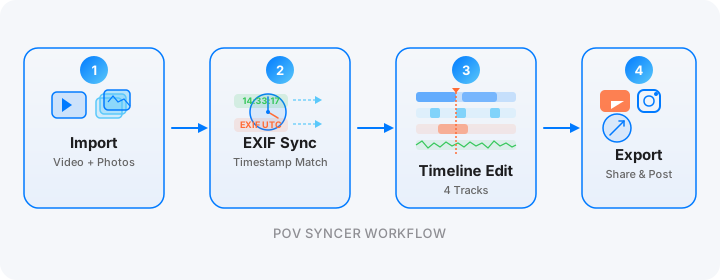
The workflow takes under five minutes from finished shoot to exported video:
Step 1: Sync Your Clocks Before You Shoot
Connect the GoPro Hero 13 to the GoPro Quik app on your phone before you leave home. Quik syncs the GoPro's internal clock to your phone's time via Bluetooth in about three seconds. This one step — ten seconds of effort — is the foundation of accurate automatic matching. The Hero 13's clock drifts when the camera sits unused; a Quik sync before each shoot keeps it within 1-2 seconds of your phone's clock.
On your street camera, make sure the internal clock is set correctly. Most modern mirrorless and compact cameras sync to your phone via their companion apps (Fujifilm Camera Remote, Leica FOTOS, Ricoh Image Sync). If your camera lacks an app, set the time manually with your phone clock open for reference. GPS-enabled cameras like the Leica Q3, Sony A7C II, and iPhone write GPS UTC timestamps that bypass timezone ambiguity entirely — POV Syncer prioritises these as its most accurate matching source.
Step 2: Import Into POV Syncer
Transfer your GoPro footage to your iPhone via the Quik app's wireless transfer or a USB-C card reader. Open POV Syncer, tap "New Project," and select your Hero 13 video file. The app reads the clip's GPS UTC creation timestamp and duration, establishing the exact time window for matching.
Next, select your street camera photos from the camera roll. Import the entire batch from the session — you do not need to pre-sort or filter. POV Syncer checks each photo's EXIF data using four timestamp strategies in priority order: GPS UTC (most accurate), OffsetTimeOriginal (handles timezone offsets), GPS-corrected timezone, and device timezone as a fallback. Only photos whose timestamps fall within the video's duration appear as matches.
Step 3: Review and Fine-Tune the Timeline
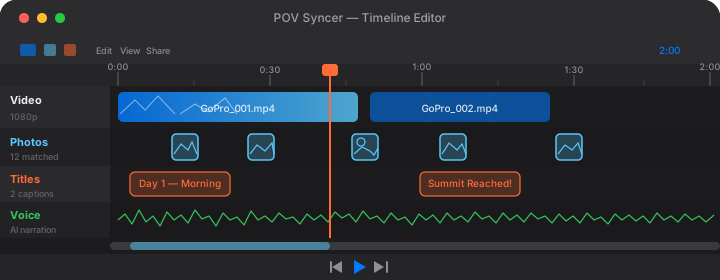
The matched photos appear as markers on the video timeline. Scrub through the timeline to verify accuracy — with a proper Quik clock sync, every photo should land within a second or two of where it was captured. You can drag any marker to fine-tune placement.
Use the 4-track timeline to shape the final video:
- Photo duration: 2-3 seconds per still for a street photography pace. Longer feels meditative; shorter risks feeling rushed.
- Titles: Location names work well — "Brick Lane, London" or "Lower East Side, 4:30pm" — using any of POV Syncer's 15 premium fonts.
- AI narration: A brief spoken line at the opening — "I had been watching this corner for forty minutes waiting for the light to change" — adds the interior narrative that photos alone cannot convey.
- Shutter sound: Keep the camera shutter sound enabled. Each click punctuates the appearance of a still frame, giving the viewer a satisfying audio cue that something deliberate just happened.
Step 4: Export in Seconds
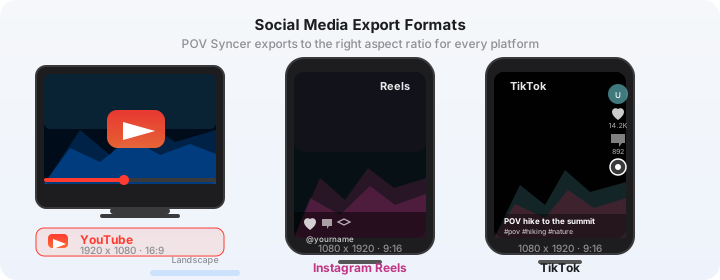
Select the 9:16 vertical preset for Instagram Reels or TikTok, or the 16:9 horizontal preset for YouTube. POV Syncer crops the GoPro's wide-angle frame intelligently, centering the composition in the vertical format. Export a 1080p version for social and keep the 4K original in your project library for future use.
What took 2-4 hours of scrubbing through footage and tedious timeline placement in a desktop editor is now done in under five minutes on your phone, between the end of the shoot and the first coffee.
Want settings cheat sheets for 20+ camera combos?
Join 1,000+ photographers getting weekly tips on POV video workflows — including optimal settings for GoPro Hero 13 paired with Fujifilm, Ricoh, Leica, Sony, and every other popular street camera.
Free. No spam. Unsubscribe anytime.
GoPro Hero 13 Street Photography Tips and Finished Results
After hundreds of hours of GoPro POV street shoots, these are the practices that consistently produce the best finished videos.
Leave the GoPro Rolling Continuously
The instinct is to start and stop the GoPro when something interesting is happening. Resist it. The most powerful moments in street photography process videos are often the walks between shots — the quiet scanning, the waiting, the near-misses. A continuous 45-minute uninterrupted clip that you trim down in POV Syncer tells a more honest story than a dozen short clips that skip the context. Battery life on the Hero 13 with HyperSmooth Standard at 4K 30fps is approximately 70-80 minutes — enough for most city street sessions.
Shoot Your Street Stills as You Normally Would
The greatest advantage of the EXIF sync workflow is that it does not change how you shoot. You do not need to signal the GoPro, press any reference button, or do anything differently with your street camera. Just shoot as you always do. The timestamps on your Fujifilm X100VI, Ricoh GR IIIx, or Leica Q3 are already being written with every frame. You are accumulating sync data invisibly with every press of the shutter.
This means your street photography instincts stay completely uninterrupted. You are not thinking about the video edit while you shoot. You are just shooting.
Shoot 20-40 Stills per Hour of Footage
That density — roughly one photo every 90 seconds to 3 minutes — is the sweet spot for a finished video that shows genuine selectivity without feeling sparse. Too many photos and the video becomes a rapid-fire slideshow that diminishes the importance of each individual frame. Too few and there are long stretches of unbroken footage that viewers disengage from.
Trust the GoPro to carry the documentary load between decisive moments. Your street camera exists to isolate the single, perfect frame from the flow.
GoPro vs Ray-Ban Meta for Street POV: Which Should You Choose?
The honest answer is that they solve different parts of the same problem. The GoPro Hero 13 produces far superior image quality: 4K at 60fps, optical stabilization, interchangeable lenses, and a wide-angle frame that communicates the environment comprehensively. If you are building a YouTube channel or creating content where video quality matters, the GoPro is the right choice.
The Ray-Ban Meta wins on invisibility. Glasses-mounted POV is genuinely undetectable on the street, and the subjects you photograph are less likely to notice and adjust their behaviour. If candid authenticity is your priority over image quality, Meta wins. Many serious street photographers use both — the Meta for highly candid urban work, the GoPro for locations and sessions where the camera's presence is already known and accepted.
Both cameras work identically in POV Syncer's EXIF matching system, so switching between them requires zero workflow changes. See our complete guide to the best POV cameras for street photography in 2026 for a full comparison.
What the Finished Video Looks Like
A well-executed GoPro Hero 13 street photography process video has a distinct visual rhythm. The GoPro footage provides the context — the street environment, the walk, the patient waiting, the moment you raise your street camera. Then the still frame appears, held for 2-3 seconds, and the viewer sees what you saw when you pressed the shutter. Then the footage resumes, carrying you to the next moment.
The result is a video that is greater than the sum of its parts. The still photos gain context and narrative depth from the surrounding footage. The footage gains visual punctuation and purpose from the stills. Together, they answer the question every viewer has when they look at a compelling street photograph: "How did you get that shot?"
Getting the Most from the Free Tier
POV Syncer is free to download — and the free tier is genuinely usable: unlimited imports, automatic EXIF sync with your photos, the full 4-track timeline editor, all 15 fonts and 10 background styles, the 100-track music library, custom audio import and voice recording, unlimited saved projects, and clean watermark-free export. That is the actual finished product. Pro only adds AI voice narration on top.
Pro unlocks AI voice narration with six neural voices (UK, US, and Australian accents), a reusable Voice Library so you can save and reuse generated clips across projects, and karaoke caption overlays — for $9.99 per month or $99.99 per year. For photographers who post process content regularly — even once a week — the time savings of a cloud-rendered narration alone make Pro pay for itself.
Check the pricing page for the full feature comparison, and see the features page for a detailed breakdown of the timeline editor, EXIF matching algorithm, and export options.
Conclusion: Stop Scrubbing, Start Posting
The GoPro Hero 13 is a remarkable camera for street photography POV. Its stabilization, low-light performance, and lens mod system make it the most capable action camera ever made for this use case. But it is only as useful as the workflow that follows the shoot.
The hours of manual editing in Premiere or Final Cut are not inevitable. Your GoPro and your street camera are already writing matching timestamps to every file. POV Syncer reads those timestamps and places every photo at the exact right moment in the video, automatically, in seconds. The two-hour editing session becomes a three-minute phone workflow. The process video you have been meaning to post gets posted tonight, while the shoot is still fresh.
Clip on the Hero 13. Walk. Shoot. Sync in seconds. Post.
Ready to end the editing grind?
Download POV Syncer free and sync your first GoPro Hero 13 street photography video in under 60 seconds. Or join 1,000+ photographers getting weekly POV tips and settings guides.
Free download on the App Store. Email list: no spam, unsubscribe anytime.