How to Make Instagram Reels from GoPro Footage and Photos
GoPro footage Instagram Reels editing does not have to mean hours at a desktop. Here is how to go from raw GoPro Hero 12 or Hero 13 clips to a polished, photo-synced Reel on your phone — without losing the energy of the original shot.
Why GoPro Footage Is Perfect for Instagram Reels
The GoPro Hero 12 and Hero 13 shoot at up to 5.3K resolution with a field of view that captures everything around you. That wide, immersive perspective is exactly what stops thumbs on Instagram. But raw GoPro footage and polished Instagram Reels are two very different things.
The gap between what your GoPro records and what performs on Reels comes down to three things: aspect ratio, photo cut-ins, and pacing. A 4:3 or 16:9 clip dumped straight into Reels gets letterboxed, looks rushed, and competes with content that was built for the platform from the ground up. The good news is that closing that gap takes less work than you think — especially when your photos sync automatically to the exact moments they were taken.
GoPro's EXIF timestamps are among the most reliable of any action camera. Every still the Hero 12 and Hero 13 capture — whether in burst mode, time-lapse, or single shot — is stamped with GPS-corrected UTC time accurate to within a fraction of a second. That precision is what makes automatic photo-to-video syncing possible and what separates a great Reel from a mediocre one.
Get the settings right the first time
Download the free POV Photographer's Cheat Sheet — camera settings, EXIF tips, and export presets for Ray-Ban Meta, GoPro, DJI, and Insta360 on one printable page.
Free PDF, no spam. Unsubscribe anytime.
The Right GoPro Settings for Instagram Reels
Video Settings That Work in 9:16
Before you shoot, set your Hero 12 or Hero 13 to record in a format that will translate cleanly to 9:16. Your two best options are:
- 4:3 aspect ratio at 2.7K or 4K, 60fps — Gives you room to reframe vertically without losing resolution. When you export for Reels, you can pan up or down to find the best crop.
- Linear + Horizon Lock at 1080p or 2.7K, 60fps — If you shoot landscape, Horizon Lock keeps the footage stable even through rough terrain, which matters when you are cutting between video and still photos.
Frame rate matters for Reels pacing. At 60fps you can slow down to 50% for smooth slow-motion cuts that emphasise the moment a photo was taken. At 30fps the footage is more cinematic but leaves less room for creative editing. For high-energy content — mountain biking, surfing, hiking — shoot at 60fps and slow the money moments down.
Photo Settings for Maximum EXIF Accuracy
Shoot your photos in GoPro's RAW+JPEG mode when possible. The RAW file gives you editing latitude; the JPEG carries the EXIF timestamp your sync app reads. Set the Hero 12 or Hero 13 to GPS-on before you start recording so every still is stamped with GPS-corrected UTC time.
If you are shooting in burst mode (25 or 30 photos per second), the timestamps will be distinct for each frame. This is important because automatic syncing reads each photo's individual timestamp — even half-second differences between burst frames are captured correctly.
Gear Setup for a Clean POV Reel
Mount your GoPro Hero 12 or Hero 13 on a chest harness or head strap for genuine first-person perspective. The chest harness gives a more stable shot and better captures your hands — useful if you are showing a skill or craft. The head strap is more immersive but can be shakier without Horizon Lock.
Carry a compact camera in your pocket or bag for the still photos. Any camera with EXIF timestamps works: a Sony RX100, an iPhone 15 Pro, or even a Fujifilm Instax Wide. The timestamps from the stills and the GoPro video do not need to be on the same device — they just need to be on the same timezone, which we cover below.
Syncing GoPro Footage to Photos: The Workflow
Step 1 — Import Your Media
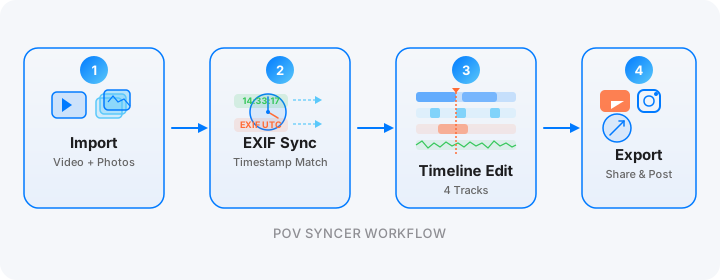
Transfer your GoPro footage and photos to your iPhone using the GoPro Quik app, AirDrop from a Mac, or direct import via the Lightning or USB-C cable. Once everything is in your Photos library, open POV Syncer and start a new project.
Tap "Import Video" and select your GoPro clip. Then tap "Add Photos" and choose the stills from your session. You do not have to curate them at this stage — import everything and let the app sort it out.
Step 2 — Automatic EXIF Matching
POV Syncer reads the EXIF timestamp in each photo and places it on your video timeline at the exact second it was taken. With GoPro footage, this works with near-perfect accuracy because the Hero 12 and Hero 13 write GPS-corrected UTC timestamps. The app uses four matching strategies in sequence — GPS UTC time, OffsetTimeOriginal, GPS-corrected timezone, and device timezone fallback — to ensure every photo finds its place.
You will see your timeline populate with photo markers. If you shot 40 photos during a 5-minute GoPro clip, all 40 land on the timeline in order. Photos taken in the same second stack and you can choose which to display.
Step 3 — Edit for Reels Pacing
Reels has a sweet spot around 25 to 35 seconds for discovery content — long enough to tell a story, short enough to watch twice. Trim your GoPro clip to that length on the timeline, keeping the best action. Then adjust how long each photo overlay appears. For fast-paced action content, 1.5 to 2 seconds per photo works well. For travel or landscape content, let each photo breathe for 3 to 4 seconds.
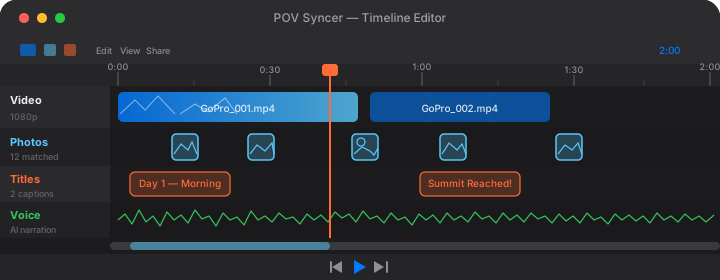
Use the timeline's title track to add a location or date caption to your photos. POV Syncer includes 15 fonts — try the bold condensed style for GoPro action content or the clean sans-serif for travel Reels.
Try POV Syncer FreeExporting for Instagram Reels: Settings That Matter
9:16 Aspect Ratio Is Non-Negotiable
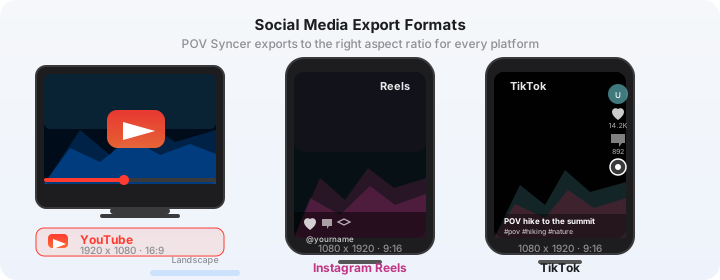
Instagram Reels plays natively in 9:16. If you export in 16:9, your video gets pillarboxed with black bars on the sides, which tanks watch time because it signals "this content was not made for me." POV Syncer exports in 9:16 by default for Reels, cropping and compositing your GoPro footage and photo overlays into the vertical frame.
For the background behind photo overlays, choose one of the 10 background styles. Blurred video background (where the GoPro footage is blurred and scaled to fill the 9:16 frame) looks great for adventure content. A solid dark background works well for urban or night shots. The gradient styles suit travel and lifestyle Reels.
Resolution and Bitrate for Reels
Instagram recompresses everything you upload, so exporting at the highest quality your phone can manage is the right call. POV Syncer exports at 1080 x 1920 pixels (1080p vertical) with a high-quality H.264 codec. This gives Instagram enough data to produce a clean final result even after their compression pass.
Avoid uploading at anything below 1080p for Reels — the platform's compression at lower resolutions produces visible artefacts, especially in the fast-motion parts of GoPro footage. If your GoPro source is 2.7K or 4K, the downscale to 1080p actually sharpens the final image.
The 30-Second Format That Performs Best
Based on how the Reels algorithm distributes content, videos between 25 and 35 seconds consistently outperform longer formats for new accounts. The algorithm rewards completion rate — the percentage of viewers who watch to the end. A tight 30-second GoPro Reel with 6 to 8 photo cut-ins has a natural rhythm that keeps completion rates high.
Structure your Reel like this: open with 3 to 5 seconds of your strongest GoPro action footage (no text, no overlay — just the hook), then cut in your first photo at the 5-second mark with a short caption. Continue alternating between video and photo moments. End with a final photo that summarises the story — a view, a finish line, a destination.
Instagram Reels Strategy for GoPro Creators
Adding Audio That Complements GoPro Footage
Instagram's algorithm gives organic reach to Reels that use trending audio. The catch is that GoPro footage often has wind noise, motor sounds, or ambient noise that clashes with music. POV Syncer lets you mute the original GoPro audio and add a custom audio track from your device's music library (with a Pro subscription). This lets you pick trending sounds from Instagram's audio library after export and apply them natively in the Reels editor.
Alternatively, use POV Syncer's AI voice narration to add a spoken story over your photo cut-ins. This is particularly effective for travel Reels: "Day 3. Summit attempt. The trail disappears into cloud at 3,200 metres." One sentence per photo. It converts passive viewers into followers.
Caption Overlay Styles That Work on Reels
Instagram's safe zone for Reels text is the middle 80% of the vertical frame. Captions placed too close to the top get covered by the profile picture and audio icons. Captions placed too close to the bottom get covered by the like, comment, and share buttons.
In POV Syncer's timeline editor, position your photo captions in the centre or upper-centre of the frame. Use high-contrast text — white text on a dark semi-transparent background, or the outline text style if your photos have busy backgrounds. At 15 to 18pt equivalent size, text reads clearly even on small phone screens without dominating the image.
Hashtag Strategy for GoPro Content on Instagram
The most effective hashtag approach for GoPro footage Reels in 2026 combines three tiers: one large general tag (#gopro, 50M+ posts), two to three medium activity-specific tags (#mountainbiking, #hikingadventures, #surfphotography), and two to three small niche tags (#goprohero13, #actioncamphotography, #povvideo). Use 5 to 8 hashtags total in the caption — Instagram's own research suggests this outperforms the old strategy of 30 tags.
Tag @gopro in your caption if your footage is genuinely strong — GoPro's community team reposts user content regularly, and a single repost from their 20M-follower account can add thousands of followers overnight.
Putting It Together: A Real Reel Workflow
Here is what a complete GoPro-to-Reels workflow looks like from start to publish, using POV Syncer on an iPhone 15:
- Shoot: 45-minute mountain bike ride with GoPro Hero 13 (chest mount, 2.7K, 60fps, GPS on). Take 25 photos at key moments with a Sony RX100 VII.
- Transfer: GoPro footage via GoPro Quik app to Photos. Sony photos via Sony Imaging Edge to Photos.
- Import: Open POV Syncer, start new project, import GoPro clip and all 25 Sony photos.
- Match: POV Syncer reads EXIF timestamps and places 23 of the 25 photos on the timeline automatically (2 were taken before the GoPro was running).
- Edit: Trim the clip to 32 seconds. Adjust 7 photos to show — the best 7 of the 23. Set each to display for 2.5 seconds. Add location captions in the bold condensed font, white on dark background.
- Export: Tap Share, select Instagram Reels preset (1080 x 1920, high quality). Video renders in under 90 seconds on iPhone 15.
- Post: Upload to Reels. Add trending audio in the Instagram editor. Write a one-sentence caption with 6 hashtags.
Total time from transfer to publish: under 20 minutes. That is fast enough to post while the ride is still fresh, which matters for the Instagram algorithm's timeliness signals.
Common Mistakes When Editing GoPro Footage for Reels
Not Syncing Timezones Before You Shoot
The single most common cause of photo-video sync errors is timezone mismatch. Your GoPro records timestamps in the timezone set in the GoPro app. Your second camera may record in a different timezone — especially if you recently travelled. Before every session, open the GoPro app and confirm the timezone, then check your second camera's settings match.
If you missed this step, POV Syncer's GPS-corrected timezone matching strategy can often recover the correct sync automatically. But setting it right before you shoot saves you from any manual adjustment on the timeline.
Starting with Too Much Footage
GoPro continuous recording can produce 30+ minutes of footage from a single session. Trying to edit 30 minutes down to 30 seconds in one go is daunting and leads to decision fatigue. Instead, import just the best 3 to 5 minutes of your GoPro clip — the sequence with the most action or the most interesting location. Cut within that window. You can always make a second Reel from the rest.
Using Every Photo You Shot
Just because you shot 40 photos does not mean all 40 belong in your Reel. Select 5 to 10 of your strongest frames — the ones with the best light, composition, or emotional impact. POV Syncer places all your photos on the timeline automatically, but you decide which ones to keep visible. Be ruthless. One great photo cut-in at the right moment does more work than six average ones.
Start Your First GoPro Reel Today
Instagram Reels is the most effective organic discovery tool on any major social platform in 2026, and GoPro footage is some of the most naturally engaging raw material available. The combination of genuine POV video and well-timed photo cut-ins creates a format that feels both immediate and carefully crafted — which is exactly what the algorithm rewards and what audiences share.
POV Syncer handles the technical side — EXIF sync, vertical export, photo overlays, caption placement — so you can focus on the creative side. The free tier lets you try the full workflow with one project before you commit to anything.
Ready to make your first GoPro Reel?
Download POV Syncer free and sync your GoPro footage to photos in minutes.
Download on App Store — Free