YouTube Shorts from Action Camera Footage: A Complete Guide
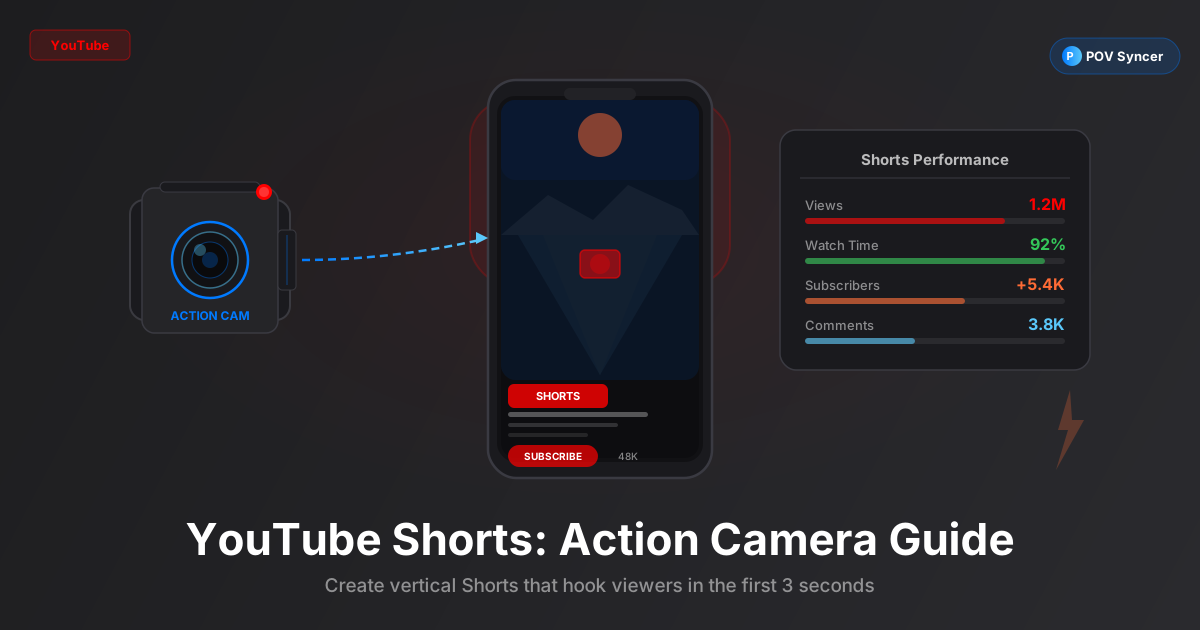
YouTube Shorts has become the fastest-growing discovery channel on the platform, and action camera footage is some of the most compelling raw material available. Here is how to go from GoPro, DJI Action 5, or Insta360 footage to a published YouTube Short entirely on your iPhone — no desktop editing suite required.
Why YouTube Shorts Is Worth Your Attention as an Action Camera Creator
YouTube Shorts surpassed 70 billion daily views in 2025 and that number is still climbing. More importantly for action camera creators, Shorts are the primary discovery mechanism that converts new viewers into long-form channel subscribers. A 45-second GoPro clip of a mountain summit that gets 50,000 views on Shorts will reliably convert 1 to 3% of those viewers into subscribers who then watch your 15-minute documentary version of the same climb.
Unlike TikTok, where discovery is driven by the For You page, YouTube Shorts benefits from YouTube's search infrastructure. Your Short is indexed and can rank for specific search queries — "GoPro surfing Canary Islands", "DJI Action mountain bike POV" — and continue driving views months or years after publication. That long-tail search behaviour is what makes YouTube Shorts uniquely valuable for action camera content creators.
The barrier to entry has also dropped considerably. You no longer need a desktop machine running Premiere Pro or DaVinci Resolve to produce a competitive Short. With the right mobile workflow — which is exactly what this guide covers — you can go from camera to published in under 30 minutes from your iPhone.
Get the settings right the first time
Download the free POV Photographer's Cheat Sheet — camera settings, EXIF tips, and export presets for Ray-Ban Meta, GoPro, DJI, and Insta360 on one printable page.
Free PDF, no spam. Unsubscribe anytime.
Which Action Camera to Use for YouTube Shorts
GoPro Hero 12 or Hero 13
The GoPro Hero 12 and Hero 13 produce the most universally recognisable action camera aesthetic: wide, saturated, smooth, and genuinely exciting. For YouTube Shorts, the GoPro's HyperSmooth 6.0 stabilisation means that chest-mount or wrist-mount footage looks professional without a gimbal. Shoot at 2.7K or 4K at 60fps — the extra resolution gives you room to reframe into 9:16 without losing sharpness.
The Hero 13 adds one key feature over the Hero 12: the HB-style direct connection to third-party lenses. For YouTube Shorts specifically, the anamorphic lens adaptor creates a cinematic widescreen look that then gets letterboxed into 9:16 with satisfying black bars — a style that is distinct from the typical action cam aesthetic and performs well for travel and lifestyle Shorts.
DJI Action 5 Pro
The DJI Action 5 Pro is the GoPro's most credible competition for YouTube Shorts content. Its 1/1.3-inch sensor produces noticeably better low-light performance than the GoPro's smaller sensor — which matters if you are shooting mountain bike trails in tree cover, early morning surf sessions, or any action that happens in less-than-ideal light. DJI's RockSteady stabilisation matches HyperSmooth for most shooting scenarios.
The DJI Action 5 Pro also records in D-Log M colour profile, which gives you significantly more latitude for colour grading in post. For a YouTube Shorts workflow that emphasises a distinctive visual identity — your own colour grade that viewers recognise as yours — the DJI is the stronger starting point. EXIF timestamps in DJI video and photo files are accurate and read correctly by POV Syncer's matching engine.
Insta360 X4
The Insta360 X4 is the wildcard. Its 8K 360-degree video means you can shoot once and extract multiple different shots — POV forward, overhead shot, behind-the-action reveal — all from the same clip. For a YouTube Shorts channel that wants visual variety without carrying multiple cameras, the X4 is genuinely compelling.
The invisible selfie stick effect — achieved by shooting 360 on a pole so the pole disappears from the reframed footage — is an X4 signature move that still generates comments and shares. Use it as your hook: the reframed shot that makes viewers think "how did they get that angle" is an effective view-completion mechanism because curious viewers watch to the end trying to figure it out.
Camera Settings for YouTube Shorts Quality
Video Settings
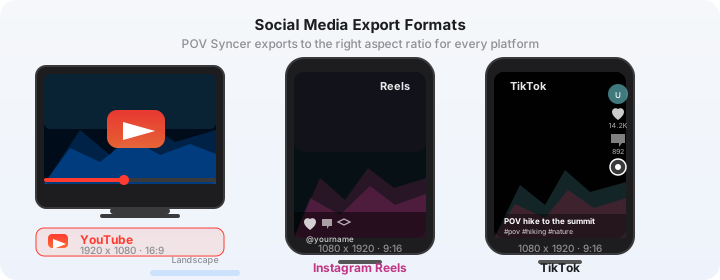
YouTube Shorts has a maximum resolution of 1080 x 1920 pixels and a maximum length of 60 seconds. Shooting at 4K and downscaling to 1080p produces a sharper final result than shooting native 1080p, because the downscale averages multiple pixels into each output pixel, reducing noise and increasing apparent sharpness.
For frame rate: 60fps is the right choice for action content because it gives you the option to slow down to 50% for emphasis shots without introducing motion blur. 30fps is acceptable for walking or slower activity content. Avoid 24fps for action camera YouTube Shorts — the motion cadence feels wrong on mobile screens at 60Hz refresh rates.
Colour profile: if your camera supports a log or flat profile (DJI's D-Log M, GoPro's GP-Log), shoot in it if you are comfortable with colour grading. If not, use the camera's standard colour profile with saturation at 0 and sharpness at -1. Both adjustments recover better in post than their opposites, and over-saturated, over-sharpened action camera footage looks amateur on a large-screen TV or monitor, which is where many YouTube Shorts are watched.
Audio Settings
Action camera built-in microphones are functional but directional — they pick up wind noise heavily in any outdoor setting above a light breeze. For YouTube Shorts, this matters because YouTube's algorithm considers viewer retention by second, and jarring wind noise in the first few seconds causes immediate drops in retention.
DJI Action 5 Pro has the best built-in wind noise reduction of the three cameras above. GoPro Hero 13's Wind Noise Reduction mode helps but does not eliminate the problem. If wind is a consistent issue in your shooting environment, record a separate audio track with a lapel microphone and replace the camera audio in post. POV Syncer supports custom audio import (Pro tier) so you can add your ambient or voiceover track during the editing phase.
The Mobile Editing Workflow: Action Camera to YouTube Shorts
Step 1 — Transfer Footage to iPhone
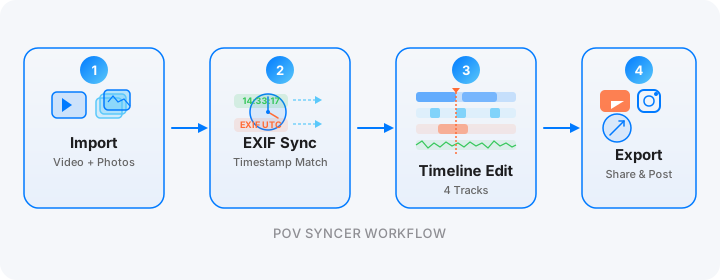
Connect your action camera via USB-C cable to your iPhone using a USB-C to USB-C cable or adaptor. On GoPro, use the GoPro Quik app for wireless transfer. On DJI, use the DJI Mimo app. On Insta360, use the Insta360 app. All three transfer apps place footage in your iPhone's Photos library.
For large files — 4K at 60fps runs to roughly 2GB per 10 minutes — a wired connection is significantly faster than wireless. A 10-minute 4K clip transfers via USB-C in under 2 minutes; wireless can take 10 to 15 minutes for the same file.
Step 2 — Import into POV Syncer
Open POV Syncer and start a new project. Import your action camera clip and any photos you took during the session. If you shot photos with a second camera — an iPhone alongside your GoPro, or a compact camera alongside your DJI — import those too. POV Syncer reads EXIF timestamps from both video files and photo files and matches them automatically.
The app places each photo on your 4-track timeline at the second it was taken. Your timeline now shows the full structure of your Short: video base track, photo overlays at the right moments, space for title cards, and an audio track for narration or music.
Try POV Syncer FreeStep 3 — Edit for the 60-Second Maximum
YouTube Shorts must be 60 seconds or under. The sweet spot for completion rate — the metric most correlated with Shorts reaching the recommendation feed — is 40 to 55 seconds. This gives you enough time for a proper narrative arc while leaving a small buffer from the 60-second cutoff.
Trim your action camera clip to the best 40 to 55 seconds. Then position your photo overlays. For YouTube Shorts with action camera footage, photo cut-ins work particularly well as a "result reveal" device: you see the action unfold in video form, and then the photo shows you the composed, considered version of what just happened — like a photographer's verdict on the scene.
Step 4 — Add a Title Card as Your Thumbnail
YouTube Shorts technically does not use a separate thumbnail image the way long-form videos do — the first frame of your Short functions as the thumbnail in most display contexts. However, using the titles track in POV Syncer to place a title card on your first photo overlay gives you an effective "cover image" that appears in search results and on your channel page.
Structure your title card like a search result, not a creative expression. "GoPro Hero 13 — Lofoten Islands POV" tells YouTube's indexing system exactly what your Short is about and gives potential viewers clear expectations. Save the creative titles for the content itself. With 15 fonts available in POV Syncer, choose a clean, high-contrast style that reads clearly at thumbnail size — approximately 60 to 80 pixels tall in most display contexts.
YouTube Shorts SEO: Titles, Descriptions, and Tags
Writing Titles That Rank
YouTube Shorts titles follow the same SEO logic as standard YouTube videos: the title is the most important ranking signal, so it needs to contain the exact phrase people search for. Research your primary keyword before you write the title. YouTube's search autocomplete is the easiest research tool — type your camera name plus a location or activity and see what YouTube suggests.
A well-optimised Shorts title looks like: "[Camera] [Activity/Location] — [Benefit or Hook]". Examples:
- "GoPro Hero 13 Mountain Bike — Whistler Trail System at Dusk"
- "DJI Action 5 Pro — Freediving POV Mediterranean Sea"
- "Insta360 X4 — Invisible Selfie Stick Trick at 4,000 Metres"
Keep titles under 60 characters so they display in full on mobile search results. Front-load the camera model name if you are targeting camera-specific searchers (people looking for "GoPro Hero 13 footage"), or front-load the activity if you are targeting activity-specific searchers ("mountain biking POV 2026").
Descriptions That Convert
YouTube Shorts descriptions are truncated in the Shorts feed but display in full on the video's standalone page. Write the first 100 characters as a standalone sentence that works as a teaser — this is what appears in the feed. Then expand the description with location details, camera settings, and a brief explanation of the workflow (mentioning POV Syncer and how you synced the photos to video adds useful context for viewers who ask "how did you make this?").
Include a link to your related long-form video in the description if one exists. Shorts-to-long-form conversion is a measurable channel growth strategy, and YouTube's analytics will show you how many Shorts viewers click through to watch the full version.
Tags for Action Camera Shorts
Use 5 to 8 specific tags rather than 15 to 20 generic ones. A well-tagged GoPro Shorts video might include: the camera model (#gopro #goprohero13), the activity (#mountainbiking #mtb), the location (#whistler #britishcolumbia), and the format (#pov #youtubeshortsfilm). Avoid tags like #viral or #shorts — YouTube knows when your video is a Short without being told and keyword-stuffed tags trigger spam filters.
Using Photo Overlays as Thumbnails and Title Cards
The Photo-as-Thumbnail Strategy
Your strongest still photo from the session should appear in the first 3 to 5 seconds of your Short — this is the frame YouTube captures for search result thumbnails. If the photo is technically excellent (sharp, well-exposed, interesting composition), this frame will outperform any auto-generated thumbnail YouTube selects from the video footage.
In POV Syncer, place your hero photo at the very beginning of the timeline — before the action footage starts. Set its duration to 3 seconds. Add your title card text over it using the titles track. Then cut to the action footage. This gives you: a compelling thumbnail image, a clear title, and an immediate transition to the video content — which is the structure that consistently produces the highest click-through rates for action camera Shorts.
Photo Overlays During the Video
After the opening thumbnail card, use 2 to 4 additional photo overlays during the body of your Short to create rhythm and context. Photos of the location before or after the main action work as effective establishing or closing shots. A photo of you or your gear adds a personal connection that action footage alone does not always provide.
With POV Syncer's 10 background styles, you can choose how photos appear over your video: as a clean overlay with the video paused, on a blurred video background that fills the 9:16 frame, or on a solid colour background for a magazine-editorial feel. The blurred video background is the most versatile for YouTube Shorts — it keeps the action energy of the video footage alive even during the photo hold.
YouTube Shorts Monetization for Action Camera Creators
The Shorts Monetization Model
YouTube's Shorts monetization works differently from long-form videos. Instead of pre-roll ads, YouTube pools ad revenue from Shorts into a Creator Pool and distributes it based on views. The rate per 1,000 views (RPM) for Shorts is lower than for long-form content, but the volume potential is much higher — a well-performing Short can reach millions of views where a comparable long-form video might reach thousands.
For action camera creators, the monetization path that works best combines Shorts (for discovery and volume) with long-form videos (for revenue per view and audience depth). Shorts build your subscriber count; long-form content generates the majority of your ad revenue. A channel that posts 3 Shorts per week plus one 10 to 15 minute long-form video per week can see meaningful revenue within 3 to 6 months of consistent posting once the YouTube Partner Program threshold (1,000 subscribers and 10 million Shorts views in 90 days) is reached.
Merchandise and Affiliate Links
A more immediate revenue path for action camera creators is affiliate revenue from camera and gear links. When you consistently publish Shorts showing identifiable gear — a GoPro Hero 13, a specific chest harness, a lens adaptor — viewers ask about that gear in comments. An affiliate link to that gear in your video description earns a commission (typically 3 to 8%) on each purchase.
The POV Syncer workflow itself is worth mentioning in your descriptions as part of this: other action camera creators are actively looking for mobile editing tools that work with their camera. Authentic recommendations from creators who use the tools themselves convert well.
Your First Action Camera YouTube Short: A Step-by-Step Summary
- Shoot with GoPro Hero 13, DJI Action 5 Pro, or Insta360 X4. Take deliberate still photos at 3 to 5 peak moments during your session.
- Transfer footage and photos to your iPhone using the camera's companion app or a wired USB-C connection.
- Import into POV Syncer — video and photos. The app reads EXIF timestamps and places photos on the timeline automatically.
- Edit to 40 to 55 seconds. Add a title card photo at the opening. Adjust photo overlay durations (2 to 3 seconds each for action content).
- Export at 1080 x 1920, high quality H.264. POV Syncer's YouTube Shorts preset handles this automatically.
- Upload to YouTube with a keyword-optimised title (under 60 characters), a full description, and 5 to 8 specific tags.
- Repeat 3 times per week. Shorts momentum compounds over time.
Start your YouTube Shorts channel today
POV Syncer handles the editing and export. Download free and make your first Short in under 30 minutes.
Download on App Store — Free