Why Premiere Pro Is Overkill for Street Photography Videos

Picture the scene. You just got back from a two-hour street walk — Ray-Ban Meta Gen 2 recording your whole route, Fujifilm X100VI or Ricoh GR IIIx firing off frames whenever something caught your eye. You have great footage. You have 20 solid keeper photos. You sit down, open your laptop, and fire up Adobe Premiere Pro because that is what video editing looks like, right?
Then Premiere loads. Every panel, every tab, every submenu appears at once. Essential Sound. Lumetri Color. Essential Graphics. Audio Clip Mixer. The Edit, Effects, Audio, and Color workspaces stacked up in the tab bar. Export settings with codec drop-downs that assume you know the difference between CBR, VBR 1-pass, and VBR 2-pass. You just want to put some photos on top of your walking footage and export it for Instagram. Instead you are looking at a professional film editing suite designed for people who make documentaries and feature films for a living.
Three hours later — three hours spent scrubbing through footage, manually dragging photo overlays to roughly the right spots, nudging them frame by frame, fixing audio sync, fighting export settings — you have a mediocre ten-minute video and the creeping feeling that this workflow is not sustainable for anyone who shoots more than once a month.
Premiere Pro is not bad software. It is outstanding software — for the job it was actually designed for. That job is not yours.
Get the free POV Photography Cheat Sheet
Camera settings, EXIF clock-sync tips, and export presets for every major POV and street camera combination — all on one page. Join 1,000+ photographers who already have it.
Free PDF. No spam. Unsubscribe anytime.
What Premiere Pro Was Actually Built For
Adobe Premiere Pro is a non-linear video editor designed for professional broadcast, film, and streaming workflows. Its feature list is genuinely staggering: multi-camera editing for productions with a dozen simultaneous angles, advanced color science with HDR and LOG gamma curve tools, built-in audio restoration powered by machine learning, After Effects integration for motion graphics, and export pipelines tuned for broadcast delivery standards most photographers have never heard of.
That depth is exactly what makes it the right tool for a documentary filmmaker cutting interviews against B-roll, or an agency editor assembling a commercial with 15 video tracks and complex audio mixing. Every one of those features was designed to solve a real problem that real professionals encounter in high-complexity productions.
Your use case — GoPro Hero 13 footage from a morning walk in Tokyo, 18 photos from a Leica Q3, want to share a process video on Instagram by the end of the day — has exactly zero overlap with those problems. You need maybe four percent of what Premiere offers. The other ninety-six percent is weight you are carrying for no reason, adding complexity to every single decision in your edit.
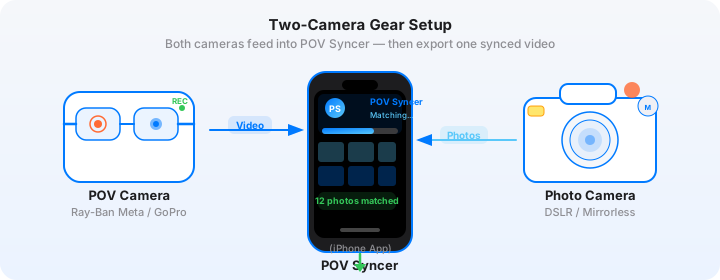
The Gear Setup for POV Street Photography
Before we get into the full comparison, it is worth being clear about what the street photography POV setup actually looks like, because it determines exactly what you need from an editing tool.
On the POV side: a wearable camera that records continuous first-person footage of your walk. The most common choices are Ray-Ban Meta Gen 2 (1080p/30fps, built into glasses, completely unobtrusive), GoPro Hero 13 (4K/60fps, mounted to a bag clip or chest harness, stabilized with HyperSmooth), DJI Action 5 Pro (4K/120fps, compact, excellent dynamic range), or Insta360 GO 3S (1080p, magnetic clip mount, genuinely invisible). All of them write their footage as MP4 files with embedded timestamps.
On the street camera side: a dedicated still camera with excellent EXIF metadata. The Fujifilm X100VI and X-T5 are popular choices — both record EXIF timestamps accurate to the second with full timezone offset data in the OffsetTimeOriginal field. The Ricoh GR IIIx and GR III are even more compact. The Leica Q3 and M11 write clean EXIF data that parses reliably. Sony A7C II, Nikon Zf, Canon R6 III — all of them write EXIF timestamps that can, in principle, be used to automatically match photos to their corresponding video frame.
The edit you are trying to produce shows your audience the walk as you experienced it — their viewpoint is your viewpoint — and at each moment you fired the shutter, your photo appears on screen. Simple, compelling, replicable. The challenge is that no standard editing software was designed around this exact workflow.
The Seven Circles of Manual Editing Hell
Let me walk through what actually happens when you try to edit this kind of video in Premiere. I am going to use real numbers based on a typical 90-minute street shoot with a GoPro Hero 13 and Fujifilm X100VI. Twenty-two keeper photos. The edit took me three hours and fifty minutes the last time I did it this way.
Step 1: Import and Survive the Bin (30 minutes)
GoPro Hero 13 footage comes in as segmented MP4 files — by default the camera splits recordings every 12 minutes or so, so a 90-minute walk is eight separate clips before you even start. You import them into Premiere, create a new sequence (and choose the right sequence preset — 4K 16:9 at 60fps if you filmed in 4K, and if you get this wrong you will see unexpected quality loss on export), drag all eight clips to the timeline in order, and check the joins for any gap where you accidentally stopped recording.
Then you import the photos. If you shot RAW + JPEG on the X100VI you have 44 files for 22 photos. Premiere does not automatically separate the RAWs from the JPEGs in your bin. You need to sort by type or manually select only the JPEG versions, then create a photo bin. If you accidentally mix RAW and JPEG versions of the same shot on the timeline, they look identical in the bin until you notice the file size discrepancy. This step alone is a quarter-hour minimum once you have sorted everything out.
Step 2: Find the Shutter Moments (90 minutes of scrubbing)
This is where the editing grind consumes your afternoon. For each of your 22 photos, you need to locate the exact frame in the video footage when you fired the shutter. You scrub through the timeline, looking for visual evidence: a slight upward tilt of your head as you raised the camera, a pause in your walking pace, a change in your eye direction. On footage from Ray-Ban Meta glasses, where the camera is built into the frame, this is almost impossible to see visually — the glasses do not move the way a handheld camera does.
For GoPro or DJI footage mounted to your bag or chest, you sometimes see your hands rise into frame. For footage from an Insta360 GO 3S clipped to your collar, you can occasionally detect a slight tension in your posture. But mostly you are guessing within a window of several seconds, then watching the playback and adjusting until the photo appears at roughly the right moment relative to the scene.
Do this 22 times and you have spent 60 to 90 minutes on a task that adds no creative value whatsoever. You are just trying to reconstruct timing information that the cameras already recorded, in the EXIF metadata block, to the second.
Step 3: Place 22 Photo Overlays on the Timeline
Once you have found the right approximate frame for each photo, you drag it from the bin to the video track above your footage. Set the in-point. Set the duration — two seconds? three seconds? longer for a stronger image? Each decision is separate. Then add a cross-dissolve transition on each end, because a hard cut looks wrong. That is four manual actions per photo: drag, set in-point, set duration, add transition. Multiply by 22 and you have 88 individual mouse operations before you have even watched the edit back once.
Then you watch it back and notice that six of the photo placements are visibly wrong — the scene in the video has moved on by the time the photo appears, so the overlay does not match the moment you actually captured. You go back, nudge those six, watch again. Repeat until acceptable.
Step 4: Sync 22 Shutter Click Sound Effects
A photo appearing silently on the video feels incomplete. You want a shutter click — or at minimum some audio acknowledgment — to mark the moment. In Premiere that means finding a shutter click sound file, importing it, and placing it on the audio track at the same timecode as each photo overlay. Twenty-two times. Then previewing each one to check the sync, because audio placements can be off by a few frames and the mismatch is immediately noticeable even if the viewer cannot articulate why something feels wrong.
Step 5: Titles, Context, and the Essential Graphics Panel
A good street photography process video needs some context. At minimum: a location and date title at the opening, maybe one or two reflective notes tied to your strongest frames. In Premiere, adding a title means opening the Essential Graphics panel, creating a text layer, choosing a font from the system font list (there are hundreds, none of them are specifically chosen for photography content), setting the size, color, opacity, and duration, then adding an animation preset. Per title card, that is five to eight separate interactions with the interface. For four title cards in a ten-minute video, that is 20 to 30 interface actions to get text on screen.
Step 6: Color and the Lumetri Rabbit Hole
Your GoPro Hero 13 footage shot in GoPro Color has one look. Your Fujifilm X100VI JPEGs in Classic Chrome or Eterna have a completely different look. When a photo overlay appears over the video, the color contrast is immediately visible if you have not done any grading. So now you are in Lumetri Color, applying a basic grade to the video to bring it closer to the film simulation style of the stills, and then individually correcting each photo to account for the fact that shooting conditions changed across the session — different light at 7am versus 9am, shade versus full sun.
This is an entire craft in its own right. Professional colorists spend entire careers mastering it. For a ten-minute street walk video you are going to spend 30 to 45 minutes doing a rough pass and it will still look slightly inconsistent, because you are not a professional colorist and Lumetri Color is a deep tool that rewards deep expertise.
Step 7: Export Settings Archaeology
You click Export. Premiere opens the Export Settings dialog. You need to choose: Format (H.264? H.265? ProRes?). Preset (Match Source — Adaptive High Bitrate? High Quality 1080p HD? YouTube 1080p Full HD?). Frame rate. Bitrate encoding method. Audio codec. Whether to use hardware or software encoding. Premiere's presets are named for professionals who understand what these settings mean. If you choose the wrong one, your video either looks worse than necessary after Instagram's compression pass, or it takes three times longer to render than it needs to because you chose a setting optimized for archival rather than social.
You export, upload, watch it on your phone, and notice that Instagram has crushed the quality because you used the wrong bitrate. Back into Premiere. Another export. Another fifteen-minute render. By the time this workflow ends, you have been at your desk for nearly four hours to produce a ten-minute video. It is a second job.
Download POV Syncer Free — Create Your First Video in 60 SecondsThe Real Problem: Premiere Was Designed for a Different Job
None of the friction I just described is the result of using Premiere wrong. That is Premiere working exactly as designed. The software was architected around a professional production workflow where separate specialists handle different parts of the edit — an assistant editor imports and organizes footage, an editor cuts the story, a colorist grades it, a sound mixer handles audio, and a delivery specialist manages the export. Premiere is a tool built to support all of those roles simultaneously, in the same project, with multiple people working on it.
When you use Premiere as a solo street photographer trying to share a ten-minute process video, you are taking on every one of those specialist roles alone, using a tool calibrated for professional-scale productions. The complexity is not accidental. It is by design. And it is the wrong design for what you are trying to do.
The Software Never Sees the EXIF Data
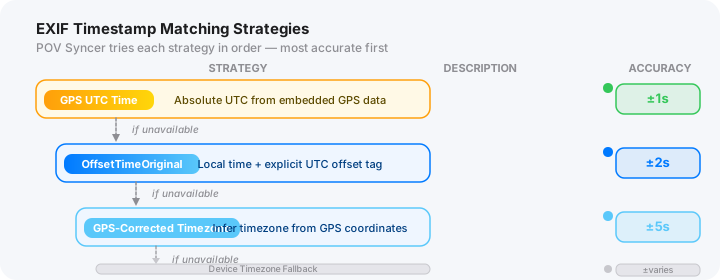
Here is the specific technical failure that causes most of the pain. Every photo you take with a Fujifilm X100VI, Ricoh GR IIIx, Leica Q3, Sony A7C II, Nikon Zf, Canon R6 III, or any other modern camera contains a precise timestamp in its EXIF metadata block. The DateTimeOriginal field records the exact moment the shutter fired, accurate to the second. More modern cameras also write a OffsetTimeOriginal field with the timezone offset, so you can convert to UTC without any ambiguity.
Your GoPro Hero 13 or DJI Action 5 Pro records a start timestamp for the video, either from GPS lock or from the device clock. The math to find which video frame corresponds to each photo timestamp is simple: subtract the video start time from the photo timestamp, multiply by the frame rate, and you have the frame number. No visual hunting. No scrubbing. No guesswork.
Premiere Pro does not do this. Not because it is impossible, but because it is not a feature that professional film editors need — they are not matching photos from a separate camera to continuous footage. The feature was never built because the use case was never part of the design brief. Premiere reads your EXIF photo timestamps the same way it would read a font file or a motion graphics template: it imports the visual asset and strips out anything else. The timestamp is in the file. The software ignores it completely.
The POV Syncer Approach: Purpose-Built for This Exact Workflow
POV Syncer was designed specifically for the street photography POV editing use case — no more, no less. The entire app exists to solve the problem of matching photos from a dedicated still camera to continuous footage from a wearable or action camera, and then letting you turn that matched content into a shareable video without needing a professional editing suite.
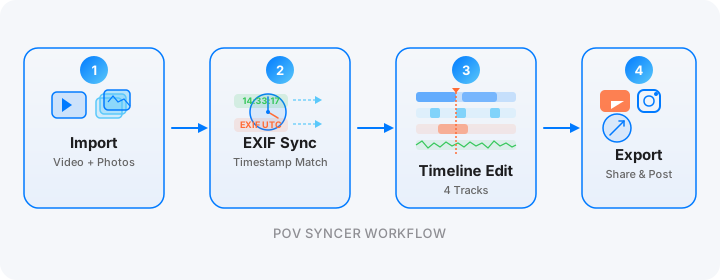
The core technical feature is automatic EXIF timestamp matching. When you import your video and photos into a new POV Syncer project, the app reads the start timestamp of the video clip, reads the DateTimeOriginal and OffsetTimeOriginal fields from every photo's EXIF block, resolves any timezone differences between the two devices, and calculates the exact timeline position for each photo. For a 90-minute session with 22 keeper photos, this entire process takes under ten seconds. All 22 photos appear on the timeline at their correct positions, placed with second-level accuracy, before you have touched a scrub bar or made a single manual placement decision.
Import: 30 Seconds Instead of 30 Minutes
Open POV Syncer and create a new project. Tap to import your POV video from your camera roll — or use AirDrop directly from a GoPro companion app or DJI Mimo. Then import your photos from the same session. The app accepts JPEGs from any camera, including Fujifilm, Sony, Ricoh, Leica, Nikon, and Canon. If you shot RAW + JPEG on the X100VI, import the JPEGs — the EXIF timestamps are identical in both files, so there is no ambiguity about which version to use.
That is the entire import step. No bin organization. No sequence setup. No codec selection. No sorting files manually. Thirty seconds from a cold start to both assets loaded and ready to sync.
Automatic EXIF Match: The Core Feature
One tap. The matching algorithm runs its four-strategy cascade: GPS UTC timestamp first (if your POV camera had GPS lock), then OffsetTimeOriginal with timezone normalization (for cameras that write explicit timezone offsets), then device timezone fallback (for cameras that write local time without offset), then filename-pattern parsing as a last resort. For most camera combinations — GoPro Hero 13 with GPS enabled, or DJI Action 5 Pro with GPS lock, matched against any modern mirrorless with correctly set clock — the matching is accurate to one or two seconds. That accuracy is imperceptible in the finished video.
The one requirement you need to meet on your end: set your camera's clock correctly before each session. Open your phone's clock, note the time to the second, and set your street camera to match. Camera clocks drift — sometimes by 30 seconds over a few weeks, which is enough to produce a visible sync offset. The 10-second habit of checking the clock before you shoot eliminates this issue entirely. You can read more about exactly how EXIF timestamps work and why camera clock accuracy matters in our dedicated guide: EXIF Timestamps Explained: Why Your Photos Sync Automatically.
Timeline: Refining, Not Rebuilding
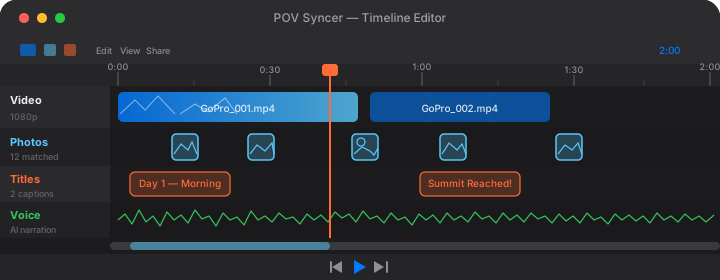
After the automatic match, you land in the four-track timeline editor. Track 1 is your POV video. Track 2 shows all your photos as markers at their matched positions. Track 3 is for titles. Track 4 is for AI narration or recorded voice.
The fundamental difference from Premiere is what you are doing in this editor. You are not building the timeline from scratch — it is already assembled, correctly, from the EXIF data. You are refining: trimming the video to remove the boring parts at the start and end, adjusting individual photo positions if any are slightly off, setting photo display duration, choosing between fade or pop transitions, adding title cards. Decisions, not mechanical placement.
Titles: 15 Fonts, Zero Learning Curve
The title system in POV Syncer includes 15 fonts specifically curated for photography content — clean sans-serifs, editorial serifs, and minimal display options that look good over video without overwhelming the frame. You tap to add a title, type your text, pick the font, set the size, and confirm. The app handles positioning and transitions. No Essential Graphics panel. No timeline layer management. No font menu with 400 system fonts you will never use.
For a typical street walk video I add three title cards: an opening location and date, one note tied to the strongest frame in the session, and a closing line. In POV Syncer that takes five minutes. In Premiere it takes twenty-five minutes and usually results in at least one font inconsistency you only notice after export.
AI Narration: Your Process in Words, Instantly
The most compelling street photography process videos include the photographer's voice — not just music over footage, but actual spoken reflection on what you were looking for, why you raised the camera, what made a specific moment worth shooting. In Premiere, adding narration means recording your voice, doing noise reduction, editing the audio to fit the video, and managing another track in an already complex timeline.
In POV Syncer, you type your narration script — 60 to 100 words works well for a ten-minute video — choose one of the premium AI voices, and tap Generate. The narration renders in seconds and drops onto the Voice track. If you prefer your own voice (and you should consider it — there is authenticity in hearing the actual photographer speak), the app supports direct microphone recording from your phone. Either way, narration goes from an afternoon project to a five-minute step.
Export: One Tap Per Platform
POV Syncer's export screen shows you destinations by name: Instagram Reels, YouTube, TikTok, 4K Archive. Tap the one you want and the app applies the correct codec, resolution, bitrate, and aspect ratio for that platform automatically. No settings archaeology. No manual codec selection. No wondering whether H.265 will play back correctly on the device your audience is watching on. The presets were built by people who understand platform compression and tested against actual platform upload pipelines.
Tap Export. The video renders and saves to your camera roll. You open Instagram, select it, and post. The whole workflow — from raw footage and unedited photos to published video — takes 20 to 30 minutes of active editing time, not four hours.
Want settings cheat sheets for 20+ camera combos?
Join 1,000+ photographers getting weekly tips on POV video workflows, EXIF sync tricks, and camera-specific settings for every major POV and street camera combination.
Free. Unsubscribe anytime.
Camera-Specific Tips for Getting the Best Results
The automatic EXIF matching workflow is straightforward, but a few camera-specific habits make the difference between a sync that is accurate to the second and one that is off by a noticeable margin. Here is what I have learned from testing every major POV and street camera combination.
Ray-Ban Meta Gen 1 and Gen 2
The Ray-Ban Meta records video at 1080p/30fps by default on Gen 1, and up to 1080p/60fps on Gen 2. The files are timestamped using the phone's clock via the Meta View companion app — which means the timestamp is accurate as long as your phone's time is correct (it always is, because it syncs to network time automatically). The key variable is making sure your street camera's clock matches your phone's clock. Sync it once before the shoot and you will have reliable matching throughout the session. The Meta footage has its own audio character — spatial, with a natural mid-bass boost from the frame resonance — so keep that in mind when thinking about whether to add narration or let the ambient audio carry the video.
GoPro Hero 11, 12, and 13
GoPro's GPS-based timestamping is extremely reliable when you have GPS lock, which takes 30 to 60 seconds outdoors from a cold start. If you start recording before the GPS locks, the video timestamp may rely on the camera's internal clock instead, which can drift. The solution: wait for the GPS indicator in the GoPro app to show a lock before you start shooting. On Hero 13, you can see this in the status overlay. With GPS lock active, GoPro timestamps are accurate to within a second or two over multiple hours of recording — more than sufficient for EXIF matching.
Hero 13 also splits files at the 12-minute mark by default. POV Syncer handles multi-clip sessions, so you can import all eight clips from a 90-minute walk and the app will treat them as a continuous timeline. The photo matching algorithm accounts for clip boundaries automatically.
DJI Action 4 and Action 5 Pro
DJI cameras write particularly clean video timestamps. The Action 5 Pro has GPS built in and writes UTC timestamps to the video metadata when lock is achieved. The Action 4 uses device clock by default. Either way, as long as you sync the camera clock to your phone before the session — which takes about 10 seconds in the DJI Mimo app's clock sync screen — the timestamps will be accurate. DJI also exports video in a slightly different file structure than GoPro, but POV Syncer handles both natively.
Insta360 GO 3S and Ace Pro 2
The Insta360 GO 3S is worth a special mention because its mounting position — typically on a collar clip or a magnetic attachment to your jacket — produces footage that looks strikingly different from GoPro or glasses-mounted video. The camera is lower, more chest-level, and shows more of the environment in front of you rather than the ground. The Ace Pro 2 is more conventional in its positioning but offers excellent stabilization. Both cameras use the companion app clock for timestamps, so the same sync-your-phone-clock habit applies. For more detail on setting up the GO 3S for street work, see our guide: Insta360 GO 3S + Ricoh GR IIIx: The Stealth Street Photography Setup.
Fujifilm X100VI, X-T5, and the Film Simulation Advantage
The Fujifilm cameras deserve a specific mention on the photo side because their JPEG output — especially with film simulations like Classic Chrome, Eterna, or Acros — already looks cinematic without any additional grading. When you import X100VI JPEGs into a POV Syncer project, the color and tonality of the stills often complement the POV footage well without additional work. This is a meaningful advantage over workflows where you are shooting RAW and need to develop and grade each still separately before the edit.
The X100VI writes EXIF timestamps with full timezone offset data in OffsetTimeOriginal, which is exactly what POV Syncer's matching algorithm prioritizes. As long as the camera clock is set correctly, Fujifilm stills match with very high accuracy — consistently within one to two seconds across a two-hour session.
The Time Comparison You Actually Need to See
I am going to make this direct, because the numbers are the argument. Same session type: 90-minute street walk, 22 keeper photos, GoPro Hero 13 footage, Fujifilm X100VI stills, destination Instagram Reels.
Manual workflow in Premiere Pro
- Import and organize (bin setup, sequence creation): 30–40 minutes
- Find and place photo overlays: 75–100 minutes
- Sync shutter click audio: 20–30 minutes
- Add titles (Essential Graphics): 20–30 minutes
- Basic color grade (Lumetri): 30–45 minutes
- Export and re-export iterations: 15–25 minutes
- Total active editing time: 3.5 to 4.5 hours
POV Syncer workflow
- Import footage and photos: 30 seconds
- Automatic EXIF match (one tap): under 10 seconds
- Timeline trim and photo position adjustments: 8–12 minutes
- Titles (three cards with chosen fonts): 4–6 minutes
- AI narration or voice recording: 3–5 minutes
- Export (one tap, platform preset): 1 minute to configure, 8–12 minutes to render
- Total active editing time: 20–30 minutes
That is not a marginal improvement. A four-hour edit becoming a 25-minute edit changes everything about how often you can share your work. Two sessions a month at four hours each is eight hours of editing. Two sessions a month at 25 minutes each is under an hour. The difference is whether sharing your process is a regular part of your practice or a special occasion that requires clearing your schedule.
But What About Quality?
The obvious objection is that a dedicated professional editor produces better results than a purpose-built mobile app. This is true if your measure of quality is the complete range of what Premiere can do — complex color grades, intricate motion graphics, multi-source audio mixing. But that is not the quality measure for a street photography process video.
For this specific use case, quality means: photo placement that is accurate to the moment of capture, audio cues that are synchronized, titles that are readable without distracting from the footage, and export formatting that survives the platform's compression pass without visible degradation. POV Syncer addresses all four of these specifically and directly. The automatic EXIF matching actually produces more accurate photo placement than most manual Premiere workflows, because the mathematical precision of timestamp matching outperforms the visual guesswork of scrubbing by eye.
The full feature set covers everything a street photography process video genuinely needs — and nothing it does not. That focus is the point. You can read about how other photographers are using the same workflow in our street photography POV process guide, or see how the editing pain point specifically affects how often photographers publish in our post on why street photographers skip making POV videos.
What the Finished Video Looks Like
I want to be specific about the output because "automated" can conjure the wrong image. The finished video from a POV Syncer workflow is not a template-filled generic piece of content. It is your footage. Your photos. Your titles. Your narration. The automation is in the mechanical steps — the timestamp matching, the audio placement, the export formatting — not in the creative decisions.
What you see in the finished video: your eye-level walk through a city, the natural ambient sound of the environment, your photos appearing at exactly the moment you fired the shutter (accurate to the second), a shutter click audio cue at each photo, titles you wrote in fonts that suit the aesthetic of your work, and narration — if you added it — in your voice or a voice you chose. It is a complete, shareable street photography process video that represents your work honestly and compellingly.
And it took you 25 minutes to make, not four hours, which means you can actually make it after every session instead of once in a while when you have an entire afternoon free. That regularity — consistent process content that builds an audience over time — is what actually grows a following for a photographer. Not the occasional perfectly edited piece, but the steady stream of genuine work.
The Free Tier Is Enough to Decide
POV Syncer's free tier gives you one complete video with full EXIF matching, the timeline editor, three fonts, two background styles. That is not a crippled demo. It is a full workflow that lets you take one session from raw footage and photos to published video and make an informed decision about whether the tool works for you.
If you have been putting off sharing your POV street photography process because the Premiere Pro grind is too painful, the free tier costs you nothing but 25 minutes to find out whether a purpose-built tool changes the equation. Based on how many hours you are currently spending per edit, it almost certainly will. And if you want to compare subscription tiers and what each one includes, the pricing page lays it out clearly — no dark patterns, no forced upsells during the edit.
Your next POV street video should take 25 minutes, not 4 hours
Download POV Syncer free and create your first automatic EXIF-synced street photography video. Works with Ray-Ban Meta, GoPro Hero 13, DJI Action 5 Pro, Insta360, and every major street camera.