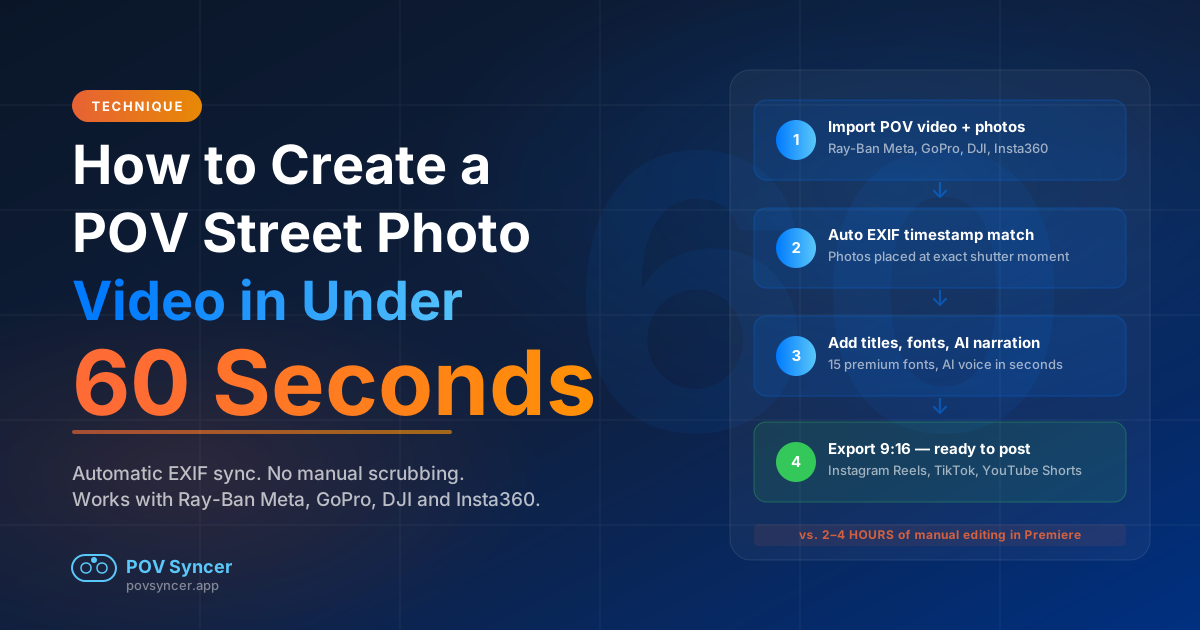
The Editing Grind That Kills Your Momentum
Here is what the manual workflow actually looks like. You have 47 minutes of GoPro Hero 13 footage from a morning walk through the market district. You have 68 photos from your Fujifilm X100VI — your best session in months. You want to create a behind-the-shot Reel showing the approach, the moment, the result.
So you open Premiere Pro or Final Cut. You import the clips. You scrub through 47 minutes of 4K footage looking for the moments where you remember raising the X100VI. You find one. You set an in-point. You import the JPEG, drag it onto the video layer, resize it, reposition it. You check whether the timing looks right. It is off by three seconds. You drag it again. You move to the next photo.
Two and a half hours later, you have a 45-second Reel with six photos in it. The footage is already a day old. Your motivation to post it is somewhere around zero. You tell yourself you will edit the next session faster. You will not.
This is what hours of manual editing costs you — not just time, but momentum. The gap between shooting and publishing is where most photographers' behind-the-shot content dies. The editing grind is the reason your audience never sees your best work from the field.
Get the free POV Photography Cheat Sheet
Optimal camera settings for Ray-Ban Meta, GoPro Hero 11/12/13, DJI Action 4 & 5 Pro, and Insta360 — plus the exact EXIF clock-sync checklist that makes automatic matching work every time. One printable page, free.
Free PDF. No spam. Unsubscribe anytime.
What POV Video Actually Is (And Why Street Photographers Are Building Audiences with It)
A POV street photography video combines two things: continuous first-person footage from a wearable camera, and the still photos you shot during that same session. The wearable camera — Ray-Ban Meta smart glasses, a GoPro on a chest mount, a DJI Action 4 clipped to your strap, or an Insta360 GO 3S on a lanyard — records everything. Your street camera captures the decisive moments deliberately.
The format works because it answers the one question every viewer has when they see a great street photograph: how did you get that? The video shows the approach, the environmental context, the positioning. Then the still photo appears — frozen, precise, the frame you chose out of everything that was happening — and the contrast between the moving world and the stopped moment is genuinely compelling.
It works on Instagram Reels and YouTube Shorts because it has built-in forward momentum. Viewers stay to see the payoff photo. And it builds an audience because it is instructive, not just decorative — every video teaches something about how to see on the street.
The Camera Combinations That Work Best
Any pairing of a wearable POV camera with a dedicated street camera can produce excellent behind-the-shot content. The most popular setups right now:
- Ray-Ban Meta Gen 2 + Fujifilm X100VI — The stealth combo. Glasses are invisible as a camera, X100VI is pocketable and fast. Natural eye-level footage pairs beautifully with the X100VI's film simulations.
- GoPro Hero 13 + Ricoh GR IIIx — The quality combo. 4K/60fps HyperSmooth footage against the GR IIIx's razor-sharp 40mm field of view. GoPro GPS enables the most accurate EXIF matching strategy.
- DJI Action 5 Pro + Leica Q3 — The documentary combo. DJI's RockSteady stabilization makes walking footage look cinematic. Q3's full-frame 28mm gives you files that hold up at any size.
- Insta360 GO 3S + Sony RX100 VII — The compact combo. GO 3S weighs 35 grams and magnetically mounts anywhere. RX100 VII's 1-inch sensor punches above its size category for street work.
The key in every case is that both cameras are recording simultaneously, and their internal clocks are synchronized. That synchronization is what makes automatic EXIF matching possible.
The Setup: What Both Cameras Need to Do Before You Walk Out the Door
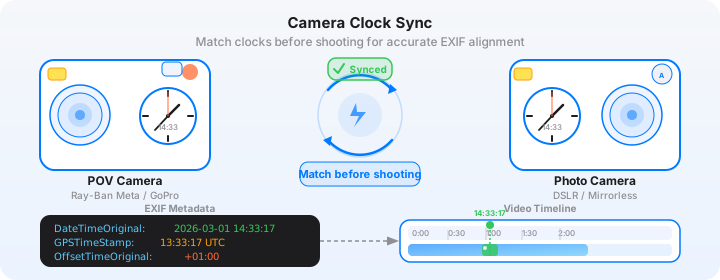
The automatic EXIF sync that makes 60-second editing possible depends entirely on one thing: both cameras showing the same time. Here is how to ensure that before every session.
POV Camera Clock Sync (Automatic)
Every major POV camera that connects to a companion smartphone app — Ray-Ban Meta via the Meta View app, GoPro via the GoPro app, DJI Action via DJI Mimo, Insta360 via the Insta360 app — automatically syncs its internal clock to your phone's time when you connect. Your phone gets its time from the network, which is accurate to the millisecond.
The only thing you need to verify: connect the POV camera to its companion app before you start recording, not after. The sync happens at connection time. If you forget to open the app before a 90-minute shoot, your POV camera clock may have drifted by several seconds — enough to shift your photo placements noticeably in the timeline.
Street Camera Clock Sync (Manual, Critical)
Fujifilm, Ricoh, Leica, Sony, Canon, Nikon, and every other dedicated camera brand does not have network time sync. The clock is set manually and drifts over time — typically a few seconds per week for most cameras, faster in temperature extremes.
Before every session: navigate to your street camera's clock settings and set the time against your phone's displayed time. Also verify the UTC offset is correct — this is the setting that tells the camera how far ahead of or behind UTC your local timezone is, including daylight saving adjustments. The Fujifilm X100VI stores UTC offset in its EXIF data as OffsetTimeOriginal, which POV Syncer uses as its second matching strategy.
The most reliable verification method: photograph your phone's lock screen before you start shooting. The resulting JPEG's EXIF DateTimeOriginal tells you exactly what your street camera thinks the time is. If it is off by 8 seconds, apply an 8-second manual offset in POV Syncer when you import.
Real Camera Settings for Street Photography POV Video
| Camera | Setting | Recommended Value |
|---|---|---|
| Ray-Ban Meta Gen 2 | Recording mode | 1080p, hands-free button tap, 3–5 min clips |
| GoPro Hero 13 | Resolution / FOV | 4K/60fps, Wide (not Max), HyperSmooth On, GPS On |
| DJI Action 4 / 5 Pro | Resolution / Stabilization | 4K/60fps, RockSteady On, Horizon Leveling On |
| Insta360 GO 3S | Mode | Standard video 2.7K/30fps, auto-start recording |
| Fujifilm X100VI | File / Focus | JPEG Fine, Velvia/Provia film sim, zone focus f/8, ISO Auto 100–3200 |
| Ricoh GR IIIx | File / Focus / UTC | JPEG Fine, Snap focus 2m, shutter sound On, UTC offset set |
| Sony RX100 VII | File / Mode | JPEG, aperture priority f/5.6, ISO Auto, Tracking AF |
| Leica Q3 | File / Speed | JPEG or DNG, 28mm, 1/500s min shutter, GPS On for UTC tag |
Download POV Syncer Free
Import your POV footage and street photos. Automatic EXIF matching places every photo at the exact moment you pressed the shutter. Create your first video in under 60 seconds.
Download POV Syncer Free — App StoreFree tier: 1 video, 3 fonts. Pro: $9.99/month — unlimited projects, AI narration, 15 fonts.
The POV Syncer Workflow: From Raw Files to Posted Reel
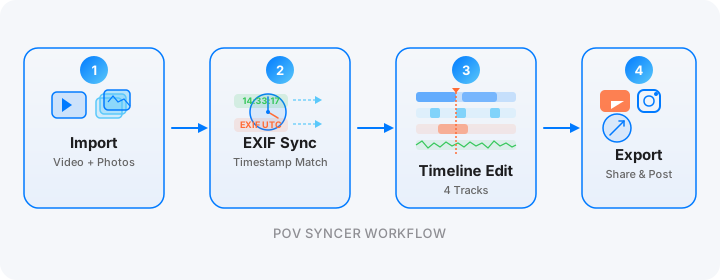
Here is the exact sequence, step by step, timed against what it would take in a traditional desktop editor.
Step 1: Import — 10 Seconds
Open POV Syncer and create a new project. Tap the video import button and select your POV footage — Ray-Ban Meta clips from the Meta View app's camera roll export, GoPro clips from your Files app after a card reader transfer, DJI footage from the DJI Mimo gallery, or Insta360 clips exported from the Insta360 app.
Then import your street camera photos. On iOS, this means selecting from the Photos library or Files app. POV Syncer reads every JPEG's EXIF data on import — you do not need to do anything with it manually.
In Premiere, this step alone can take 10 to 20 minutes if you are transcoding 4K GoPro footage to a proxy format first.
Step 2: Auto EXIF Match — Under 5 Seconds
Tap the match button. POV Syncer runs its four-strategy EXIF cascade automatically:
- GPS UTC timestamp — the most accurate strategy, used when your street camera (Leica Q3 with GPS, or iPhone) or POV camera embeds absolute GPS time in the EXIF data.
- OffsetTimeOriginal — reads the UTC offset field that Fujifilm, Sony, and Nikon cameras write when their timezone is set correctly. Gives sub-second accuracy without GPS.
- GPS-corrected timezone inference — uses location data to determine the correct offset when the camera did not write OffsetTimeOriginal explicitly.
- Device timezone fallback — uses your iPhone's current timezone as a last resort. Still places photos correctly if both cameras were in the same timezone.
For a session with 68 photos and 47 minutes of footage, this matching runs in under 3 seconds. Every photo gets a position on the timeline corresponding to the exact second you pressed the shutter. Not an approximation — the exact second.
In Premiere, the equivalent step is scrubbing the footage manually and placing each photo by eye. For 68 photos, that is 2 to 4 hours.
Step 3: Review and Select — 5 to 10 Minutes (Optional)
For a single behind-the-shot Reel, you do not use all 68 photos. You select 1 to 5 that tell the clearest story. Scroll the timeline — POV Syncer shows thumbnail previews of each photo at its matched position — and remove the photos you do not want to include in this project. Save the rest for separate projects or a longer highlight video.
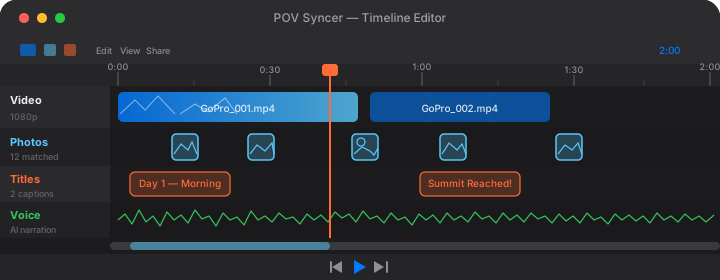
This review is the creative step. Everything else in the workflow is automated. This is where you decide which moments earn the payoff of being shown to your audience.
Step 4: Add Titles and Narration — 2 to 5 Minutes
POV Syncer includes 15 premium fonts for title cards — clean serif and sans-serif options that work over dark street footage without looking like a generic social media template. Choose a font, add a brief text card at the start of the video: the camera combo, the location, the date. That is enough context.
For AI narration: tap the microphone icon and type what you want to say. Something like "I had been watching this corner for twenty minutes waiting for the light to catch someone walking through." AI voice generates in seconds — not a generic robot voice, but a natural narration tone that plays over the approach section before the photo reveal.
You can also record your own voice directly in the app. Either way, the narration is timed to the approach section and fades before the payoff photo appears. The photo speaks for itself.
Step 5: Export — Under 60 Seconds
Tap export. Select 9:16 for Instagram Reels, TikTok, or YouTube Shorts — or 16:9 if you are posting to YouTube as a standard video. POV Syncer renders the final video directly on your iPhone and saves it to your camera roll. From there, open Instagram or TikTok and post.
The entire workflow from opening the app to a rendered file in your camera roll: under 15 minutes for a first attempt. Under 5 minutes once you have done it a few times. The 60-second figure in the title refers specifically to the matching step — the part that previously took hours is now under a minute.
Time comparison: A typical 10-photo behind-the-shot Reel takes 2–4 hours to produce in Premiere Pro (scrubbing footage, manual placement, audio matching, export). The same video takes 10–15 minutes in POV Syncer — most of which is the creative review step, not the mechanical work.
Tips for Getting the Best Results with Each POV Camera
Ray-Ban Meta Gen 1 and Gen 2
The Meta View app syncs the glasses clock automatically every time you open it. Make a habit of opening the app and glancing at the connection status before you walk out the door — this takes 5 seconds and guarantees your clock is current.
Ray-Ban Meta footage exports as short clips (the glasses record in segments). Import all the clips from your session into a single POV Syncer project — the app handles multi-clip timelines natively, stitching the segments together so your photos match correctly even when they fall across clip boundaries. For more detail on getting the best results from Meta footage, see our guide to Ray-Ban Meta video editing on iPhone.
GoPro Hero 11, 12, and 13
Keep GPS On at all times. The GoPro Hero 11, 12, and 13 all embed GPS UTC timestamps in video metadata, which enables POV Syncer's most accurate matching strategy — the GPS UTC method that gives you millisecond-level precision. If you turn GPS off to save battery, you fall back to the device timezone method, which is still accurate but adds a small risk of timezone offset errors.
HyperSmooth at the standard setting makes walking footage smooth without the artificial floaty motion of Boost mode. 4K/60fps gives you headroom to slow footage down to 24fps in the timeline for a more cinematic look at the moment the photo appears.
For the full GoPro behind-the-shot workflow with Fujifilm, read our GoPro Hero 13 + Fujifilm X100VI guide.
DJI Action 4 and Action 5 Pro
DJI Mimo syncs the Action camera's clock when you connect. The Action 5 Pro adds a front display that shows the current time — use this to do a quick visual check against your street camera's displayed time before shooting.
RockSteady stabilization on DJI Action cameras is aggressive enough that you can shoot handheld while walking at a normal pace and the footage will look smooth. For street photography, this means you can keep the camera on your chest mount, wrist, or clipped to a strap without any dedicated gimbal. The DJI Action 5 Pro syncing guide covers the full settings and import workflow.
Insta360 X4 and GO 3S
The Insta360 GO 3S is the most discreet POV camera available — it is smaller than a thumb drive and records from a single magnetic mount point that works on clothing, bag straps, or the accessory case lanyard. Clock sync happens in the Insta360 app at connection. For street photography specifically, the GO 3S's small sensor means footage looks best in good light — morning and midday shoots in direct sun give noticeably better results than dusk.
The Insta360 X4 shoots in 360 degrees, which means you reframe in post — you choose the perspective after the fact. This is useful for street photography because you can reframe to emphasize the exact direction you were looking when you pressed the shutter, making the connection between POV footage and still photo even more direct. Our Insta360 X4 editing guide covers the reframe workflow in detail.
Want settings cheat sheets for 20+ camera combos?
Join 1,000+ photographers getting weekly POV video tips — including camera-specific settings cards for every major POV camera and street camera combination, EXIF troubleshooting guides, and first look at new POV Syncer features.
Free. No spam. Unsubscribe anytime.
What the Finished Video Looks Like
Here is a concrete example of what a well-executed 40-second POV street Reel looks like after the full POV Syncer workflow.
The GoPro Hero 13 footage opens at a market. It is 9:40 in the morning, light low and directional. The footage shows someone walking — passing stalls, slowing near a produce vendor, moving into a position to the left. At 0:08, a brief AI narration begins: "I had been watching this vendor for fifteen minutes. When a customer stopped to point at something, the shadow moved exactly where I wanted it."
At 0:19, the footage shows a slight raise of the body — the moment the X100VI went up. Half a second later, the Fujifilm X100VI photo appears at its exact EXIF timestamp: the vendor's hands, the customer's pointing finger, the shadow of the awning falling across both of them. Velvia film simulation. Grain. The image holds for four seconds.
The narration is silent during those four seconds. The footage continues briefly in the background behind the photo overlay. Then the video ends — 38 seconds total, clean cut.
What the comment section looks like: photographers asking about the camera settings, the focal length, the light. People who shoot on the same streets asking where exactly in the market this was taken. Engagement that feeds the algorithm and the audience simultaneously.
That is the format. And the next one takes you 10 minutes to make, not four hours.
Fixing the Most Common EXIF Sync Problem
The most frequent issue new POV Syncer users encounter: photos appear in the timeline but they are several minutes away from where the footage matches them. This is almost always a timezone problem, not an EXIF problem. The camera stored the correct local time but without the UTC offset that tells the app which timezone that local time refers to.
The fix is simple. In POV Syncer's import settings, there is a manual offset slider. If your photos are appearing 5 hours early in the timeline, apply a +5 hour offset. If they are appearing 2 hours late, apply -2 hours. You will find the right offset within two or three adjustments — just look for the moment in the footage where you can see yourself raising the camera, and compare it to where the photo is landing. The difference in seconds or minutes tells you exactly what to enter.
To avoid needing this fix at all: set the UTC offset in your camera's clock settings before every session. On Fujifilm cameras, this is in the Setup menu under Date/Time — the offset is listed as a +/- hour value. On Ricoh GR cameras, it is in the Camera Settings menu. Setting it once is usually enough unless you travel across timezones.
For the deep technical explanation of how EXIF timestamps work and all four matching strategies, read our complete guide: EXIF Timestamps Explained: Why Your Photos Sync Automatically.
From One Reel to a Content Strategy
When you can produce a behind-the-shot Reel in 10 to 15 minutes, the economics of content creation change completely. A three-hour street session can yield three separate Reels — one per strong photo moment — instead of one four-hour editing marathon. You post more, your audience grows, and you spend more time shooting rather than editing.
The accounts building real audiences on photography Instagram in 2026 are posting process content consistently, not just finished photographs. The difference between photographers who have 500 followers and those who have 50,000 is rarely the quality of the photos. It is the consistency of process content and the willingness to show how the work gets made.
POV Syncer removes the barrier that stops consistent posting — the editing grind. What took hours is done in record time. That is the whole value proposition, and it holds up every time you use it.
For more on building a photography audience with POV video, see our guides on Instagram Reels with GoPro footage, YouTube Shorts with action cameras, and TikTok POV video camera setups. If you want to understand where POV street photography content is heading in 2026, read our overview of the street photography video revolution.
The 60-Second Summary
If you shoot street photography with any dedicated camera and record POV footage with Ray-Ban Meta, GoPro, DJI, or Insta360, you can create a finished Reel in a fraction of the time it takes in Premiere or Final Cut. The manual editing workflow — scrubbing through footage, tedious timeline placement, adjusting photo positions one by one — is the old way. Automatic EXIF sync is the new way.
Sync both camera clocks before you shoot. Import your files into POV Syncer. Let the EXIF matching run. Spend 10 minutes on creative selection and titles. Export. Post while the session is still fresh and you still feel the energy of the shoot.
That is the whole workflow. Your best street photography deserves to be seen — and automatic EXIF sync means the editing grind is no longer the thing standing between the shoot and your audience.
Create your first POV video in 60 seconds
POV Syncer is free to download. Bring your POV footage and your street camera photos. Automatic EXIF matching does what took hours in under a minute.
Download POV Syncer FreeFree tier included. Pro: $9.99/month or $99.99/year — AI narration, 15 premium fonts, unlimited projects.
Or get weekly POV photography tips and camera-specific cheat sheets in your inbox:
Join 1,000+ photographers. No spam. Unsubscribe anytime.
Related Guides
- EXIF Timestamps Explained: Why Your Photos Sync Automatically
- Street Photography POV Video: Show How You Got the Shot
- Ray-Ban Meta Video Editing on iPhone: The Complete Workflow
- GoPro Hero 13 + Fujifilm X100VI: The Travel Creator's Setup
- Insta360 X4 Editing: Add Photos to Your 360 POV Videos
- DJI Action 5 Pro: Video Editing and EXIF Sync Guide
- Why Your Street Photography Video Editing Takes Too Long
- All POV Syncer Features
- POV Syncer Pricing